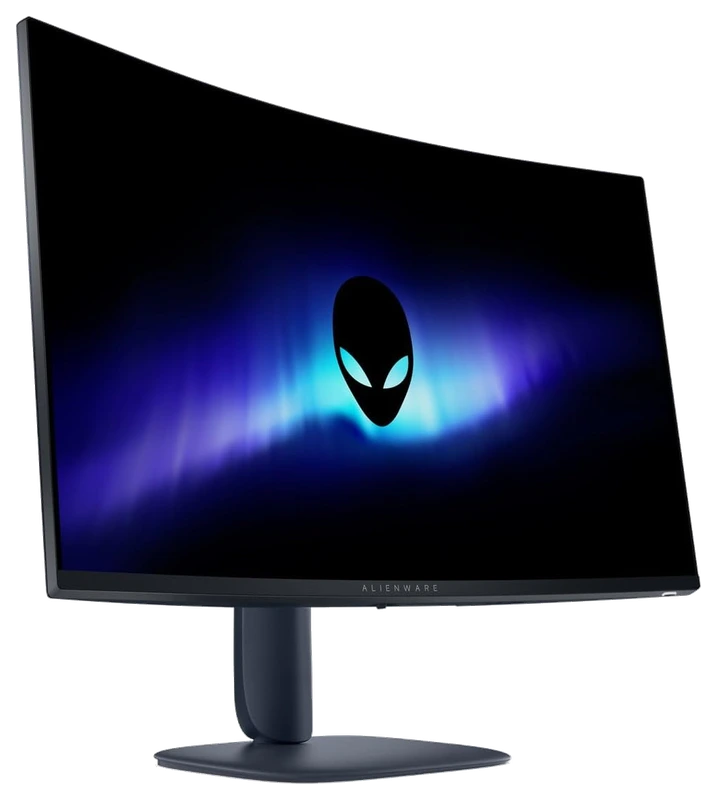
At a glance
What the verified hours show
Explore this published ranking, then compare the features and fit for your setup. Sign in with Steam to reveal the leading products and their verified hours.
The broad guide includes different screen sizes, panel types and modes. Use a specialist requirement to build a comparable shortlist.
Compare the rankingsPublished rankings
Products are ranked by verified playtime.
Board readout
94 ranked products in the published guide set
Best Gaming Monitor — Verified Playtime · Across games · Updated
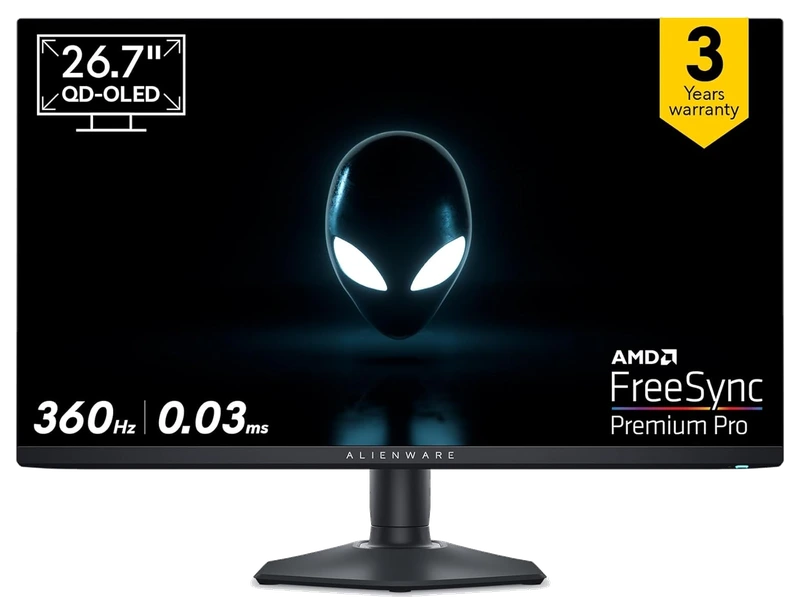
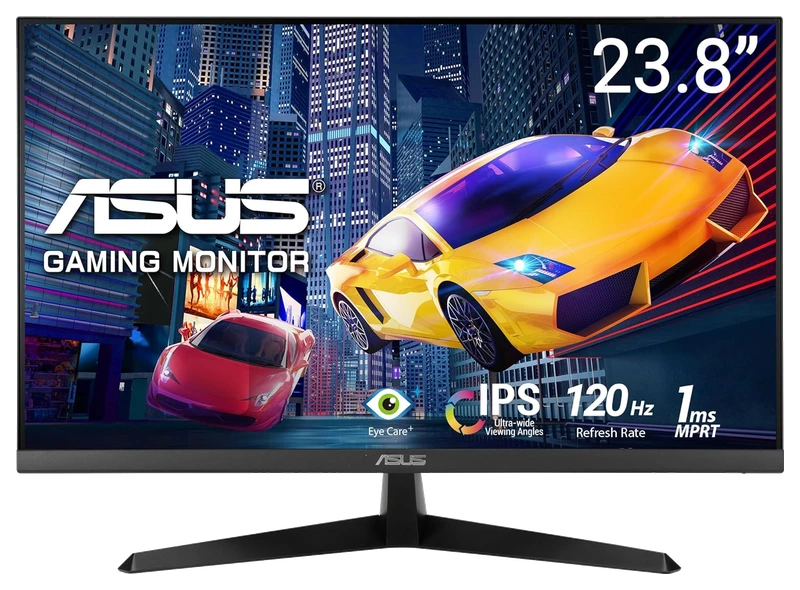
Top 3
Sign in with Steam to open the full top three
Steam opens the full top three and their verified-hour totals. Any results ranked fourth or lower stay visible.
- Rank 4.
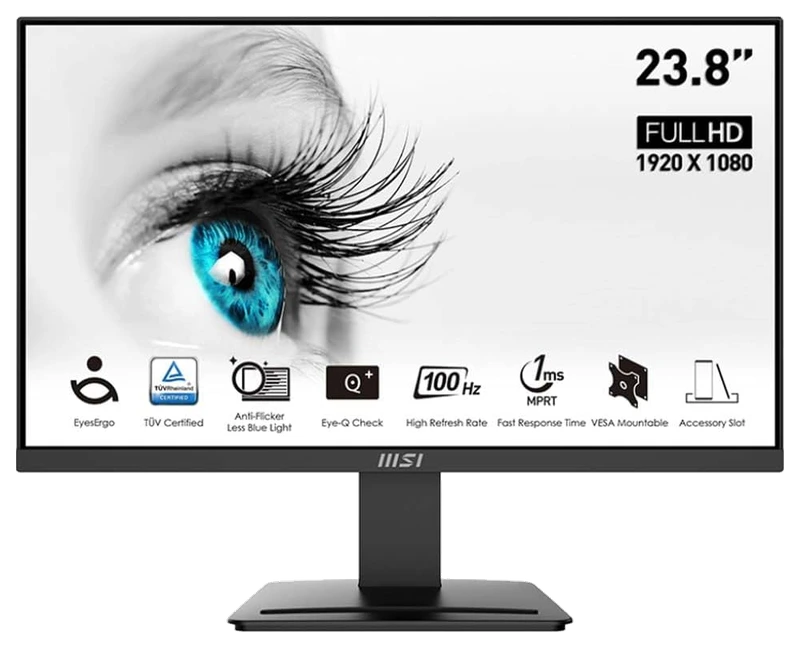
Verified Playtime
2,583verified hours
- Rank 5.
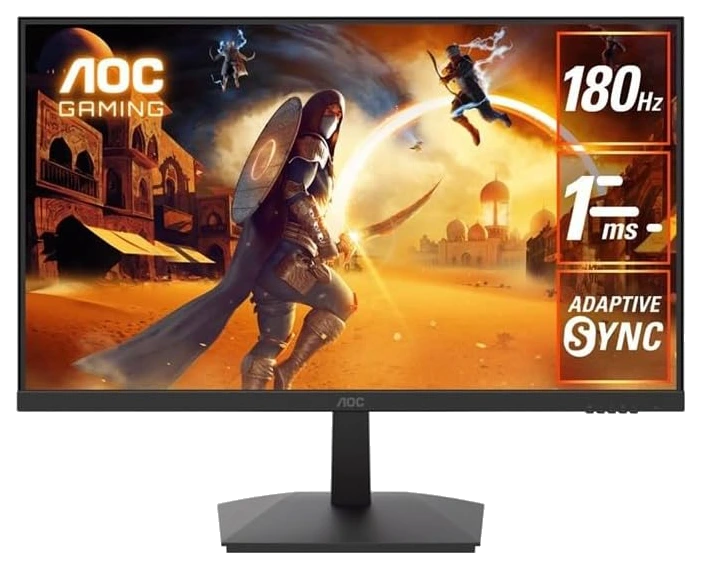
Verified Playtime
2,478verified hours
- Rank 6.
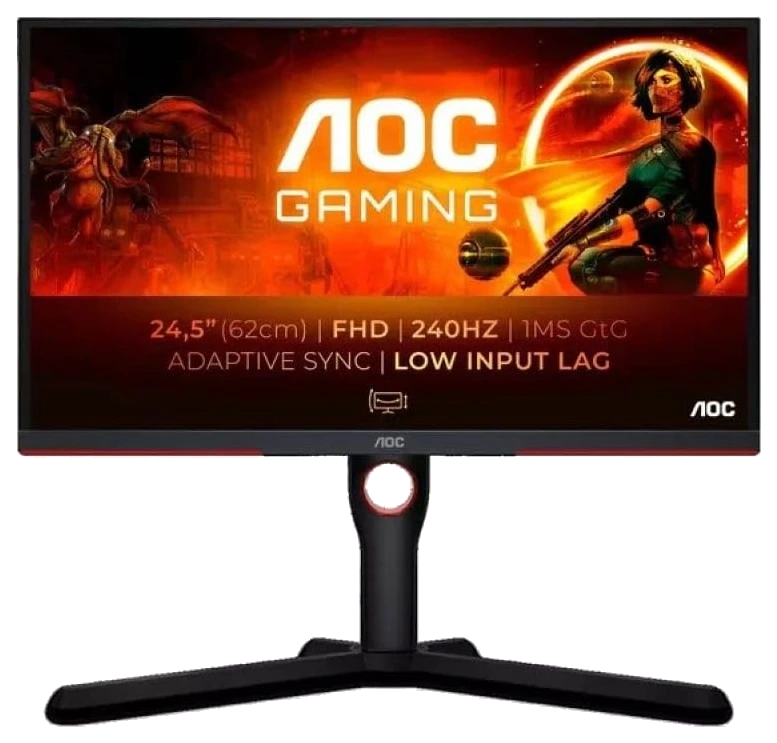
Verified Playtime
2,477verified hours
- Rank 7.
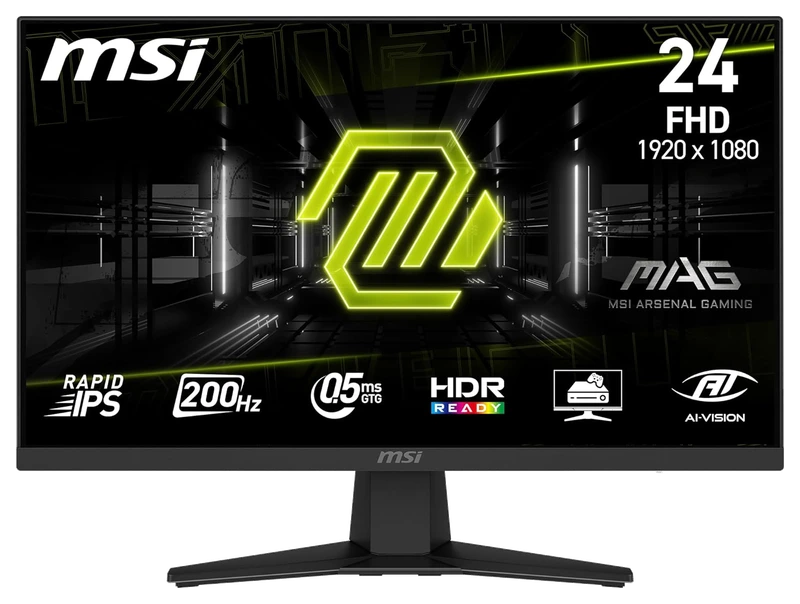
Verified Playtime
2,262verified hours
- Rank 8.
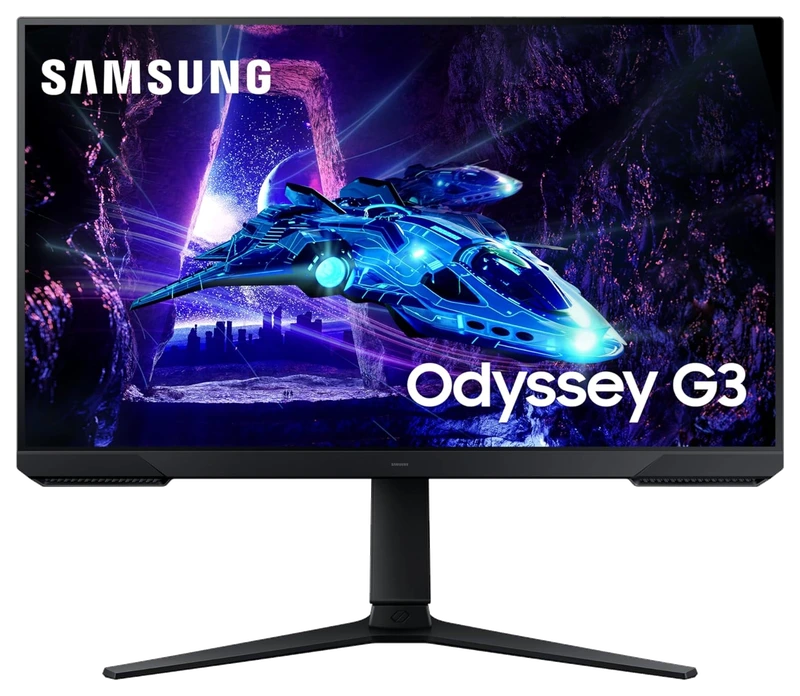
Verified Playtime
2,135verified hours
- Rank 9.
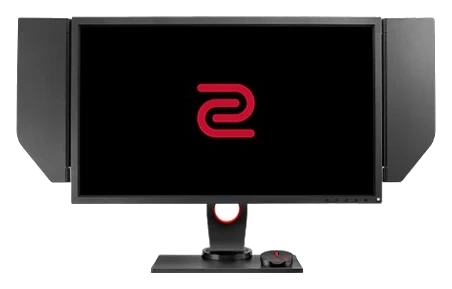
BenQ Zowie
XL2540 240Hz Gaming Monitor
Verified Playtime
1,900verified hours
- Rank 10.
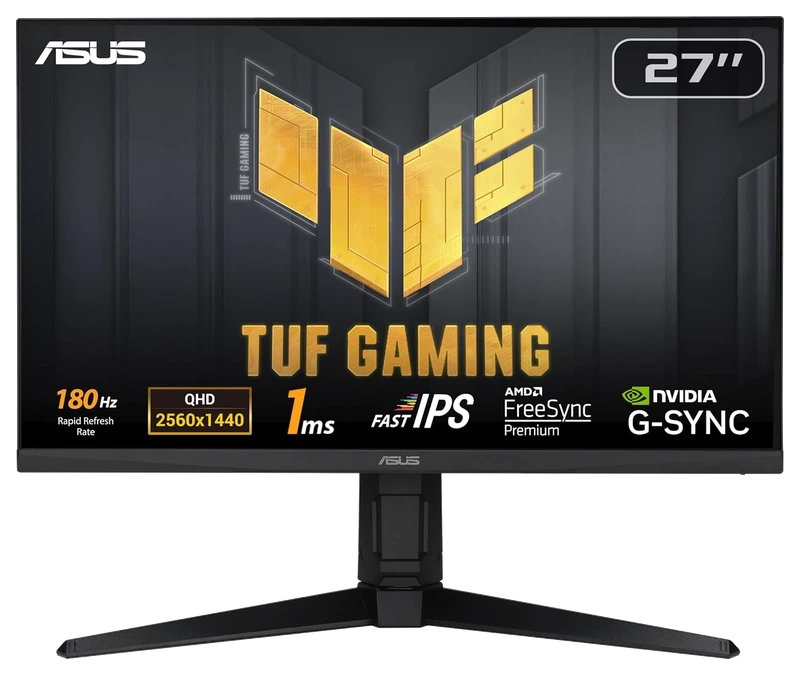
Verified Playtime
1,859verified hours
Showing 10 of 94 productsAll 94 productsShow all 94 productsShow top 10
- Rank 11.
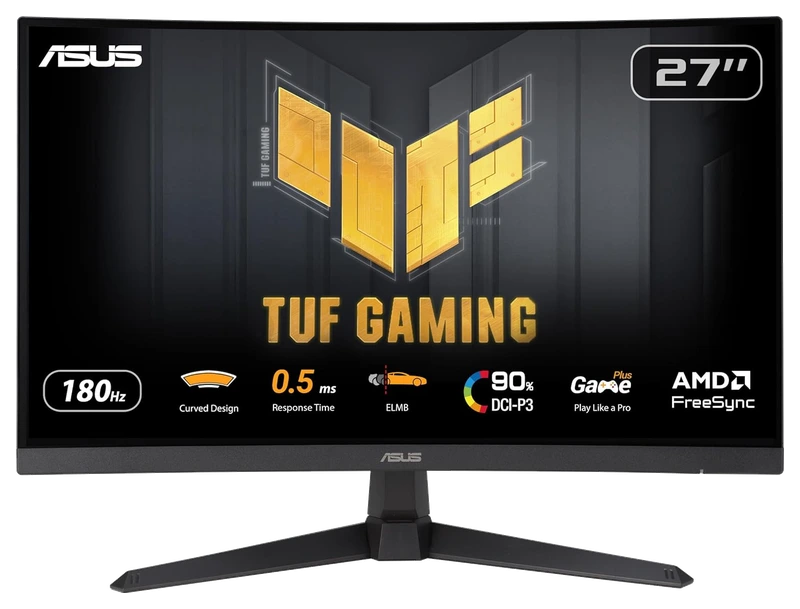
Verified Playtime
1,785verified hours
- Rank 12.
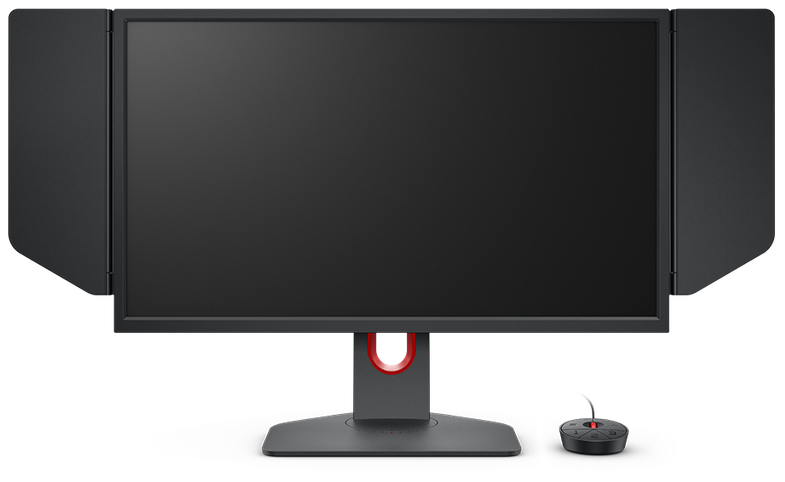
BenQ Zowie
XL2566K 360Hz Gaming Monitor
Verified Playtime
1,680verified hours
- Rank 13.
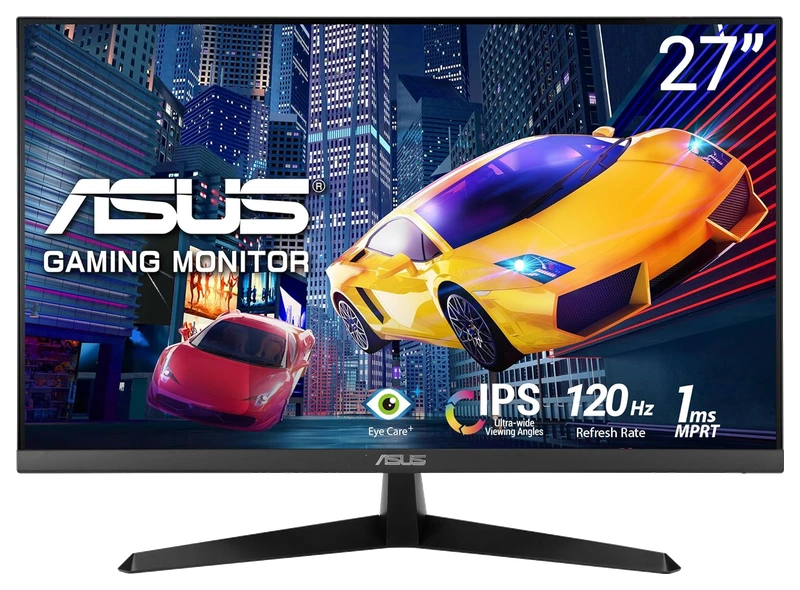
Verified Playtime
1,678verified hours
- Rank 14.
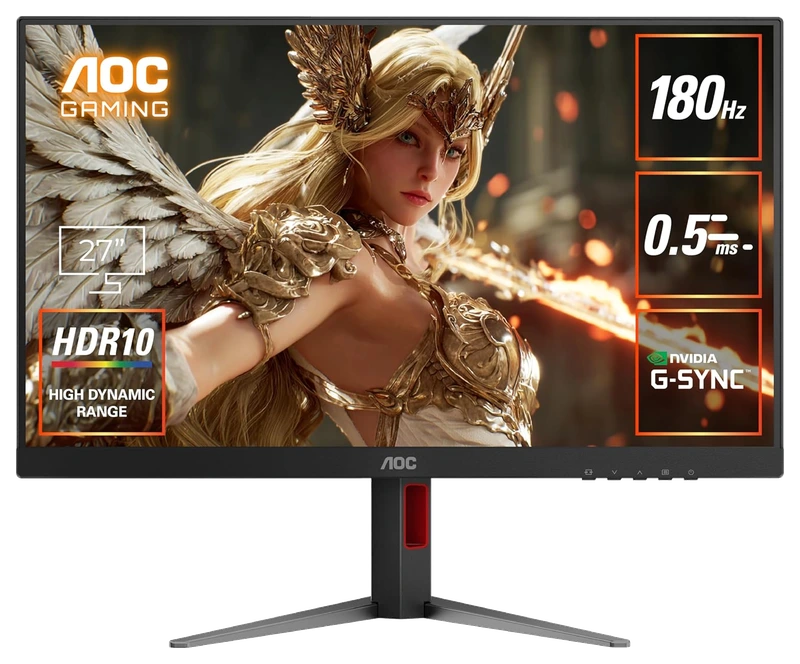
Verified Playtime
1,677verified hours
- Rank 15.
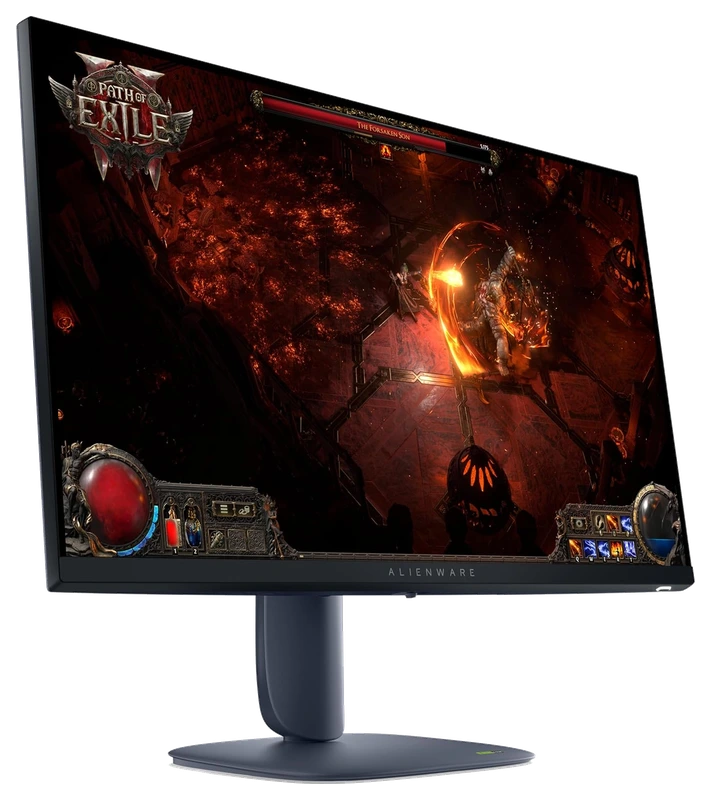
Verified Playtime
1,484verified hours
- Rank 16.
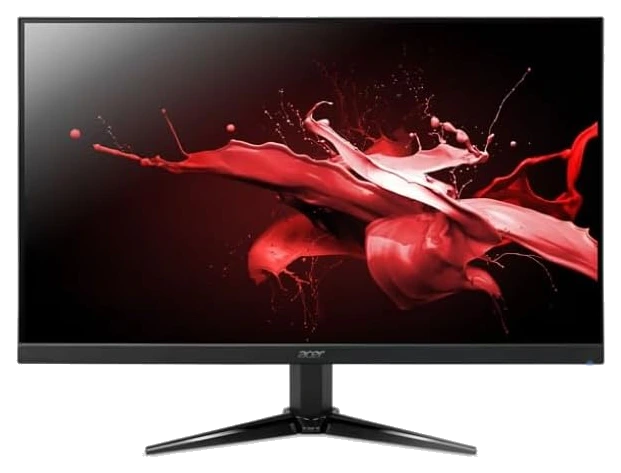
Verified Playtime
1,478verified hours
- Rank 17.
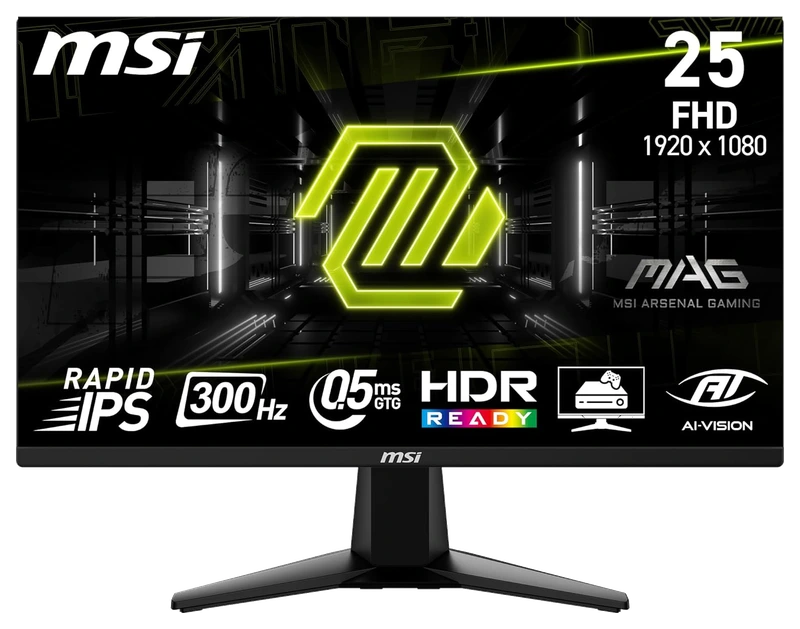
Verified Playtime
1,477verified hours
- Rank 18.
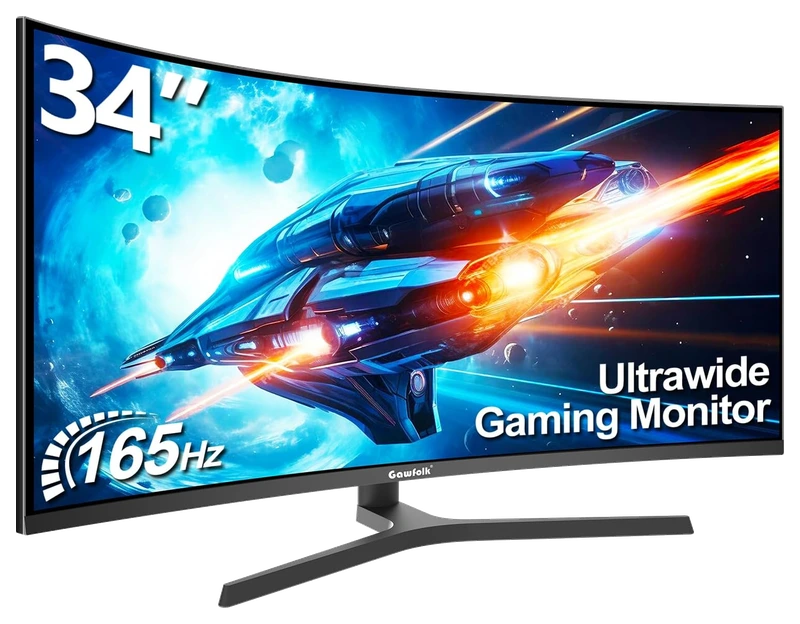
Verified Playtime
1,370verified hours
- Rank 19.
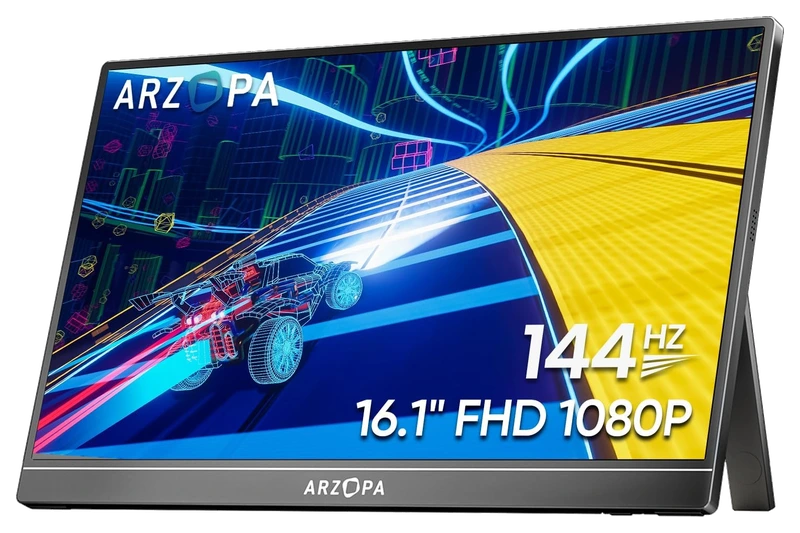
Verified Playtime
1,278verified hours
- Rank 20.
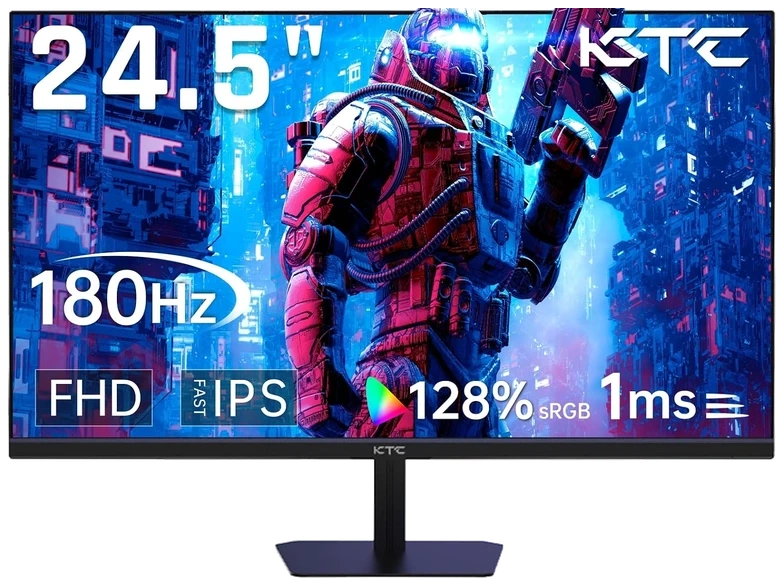
Verified Playtime
1,277verified hours
- Rank 21.
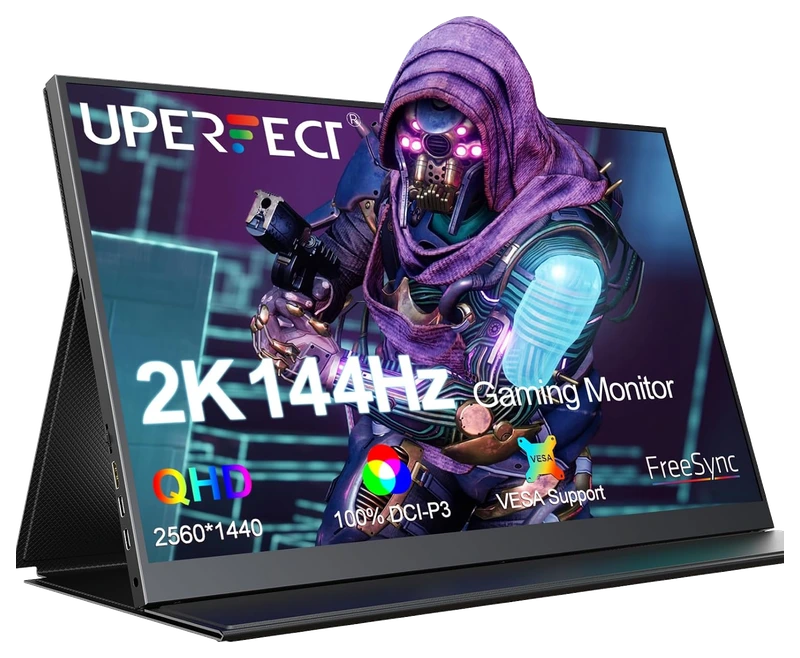
Verified Playtime
1,202verified hours
- Rank 22.
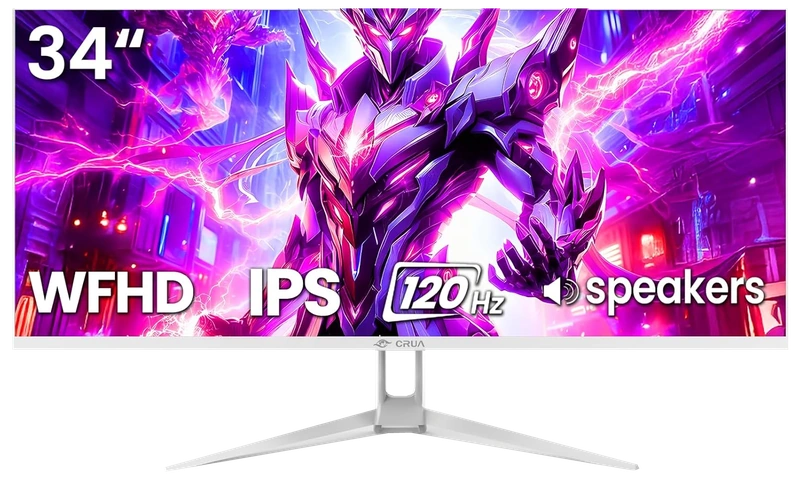
Verified Playtime
1,118verified hours
- Rank 23.
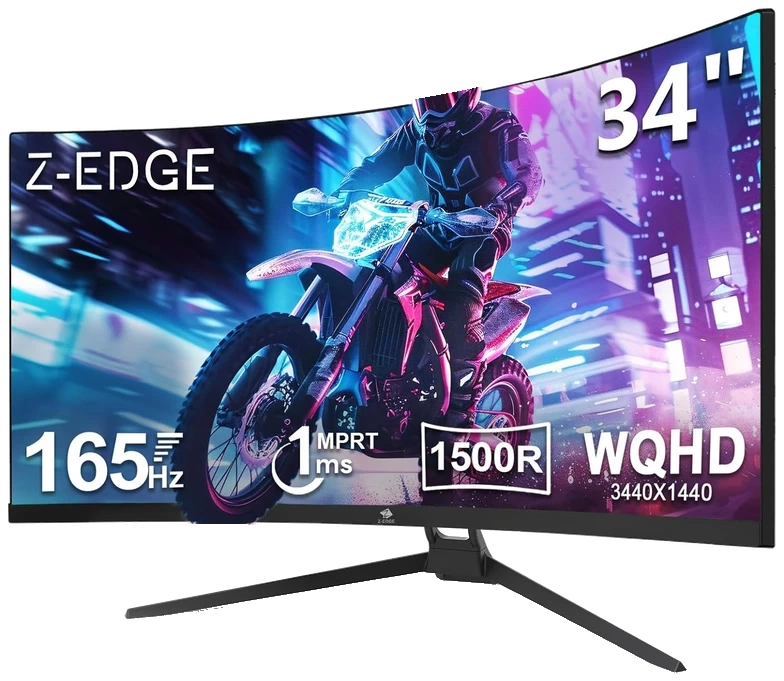
Verified Playtime
1,117verified hours
- Rank 24.
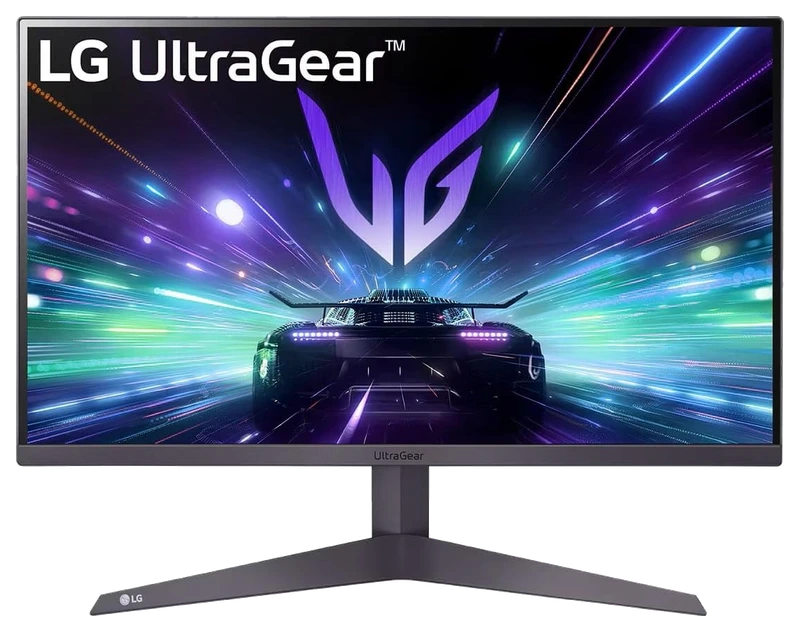
Verified Playtime
1,078verified hours
- Rank 25.
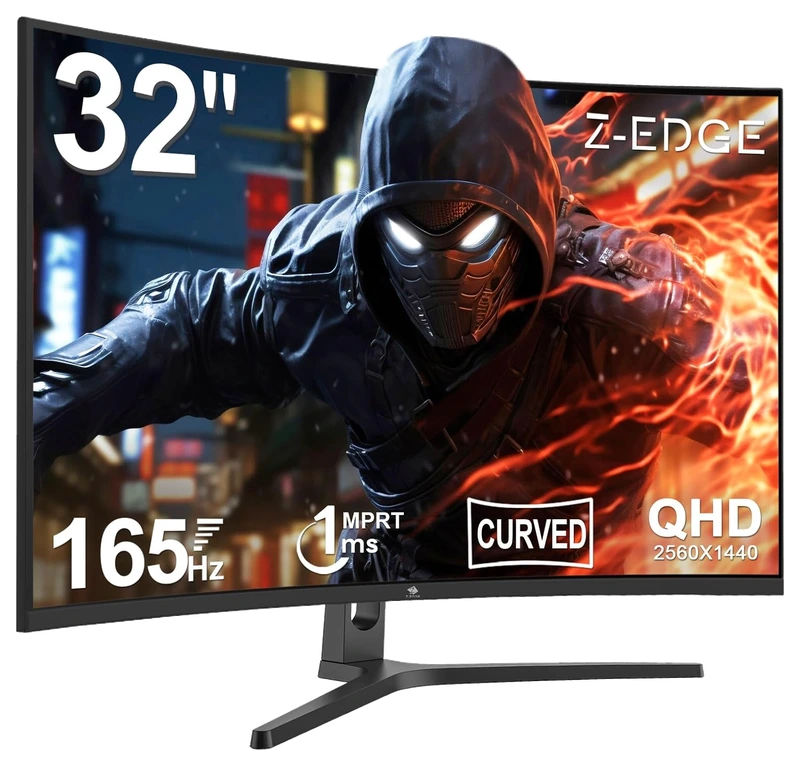
Verified Playtime
1,077verified hours
- Rank 26.
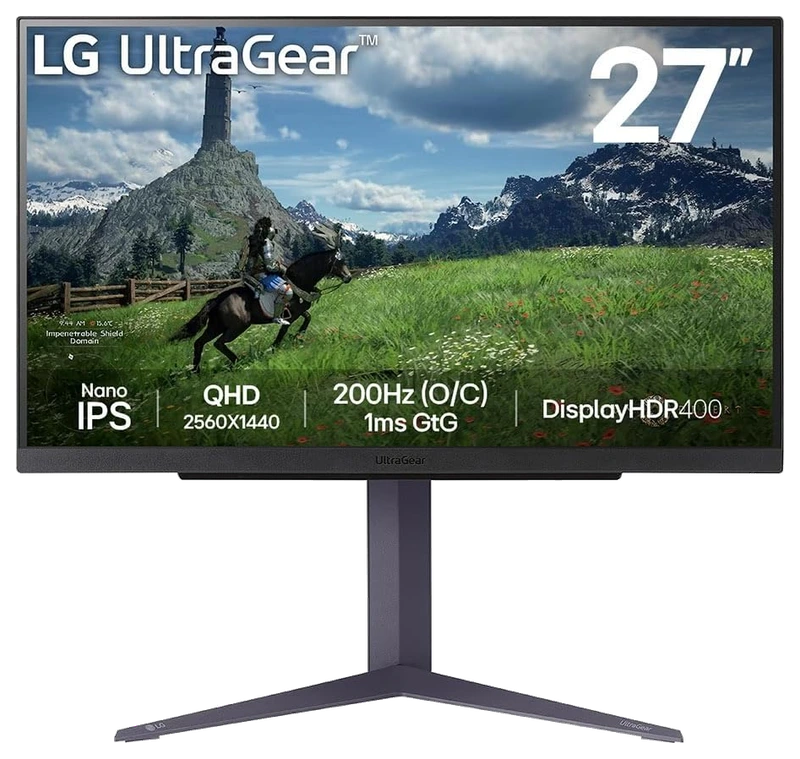
Verified Playtime
1,038verified hours
- Rank 27.
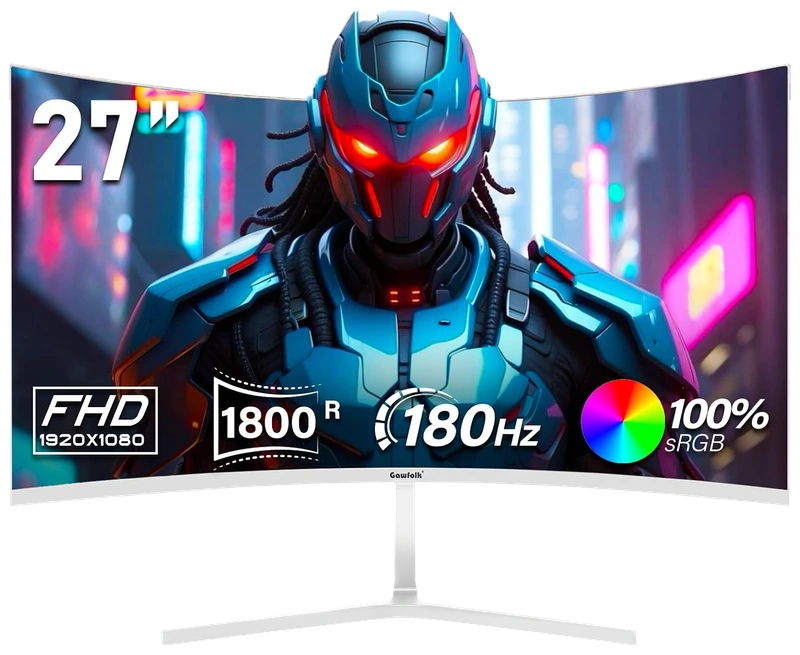
Verified Playtime
1,037verified hours
- Rank 28.
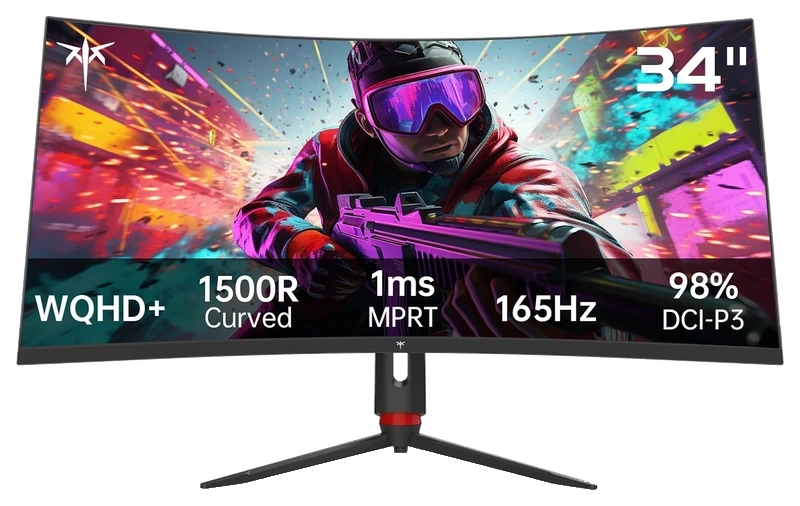
Verified Playtime
967verified hours
- Rank 29.
Verified Playtime
958verified hours
- Rank 30.
Verified Playtime
957verified hours
- Rank 31.
Verified Playtime
956verified hours
- Rank 32.
Verified Playtime
955verified hours
- Rank 33.
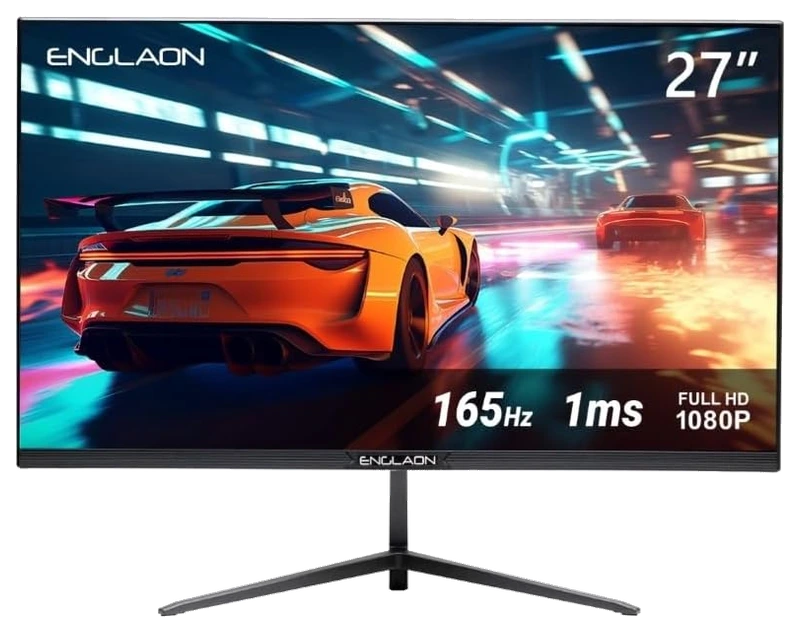
Verified Playtime
805verified hours
- Rank 34.
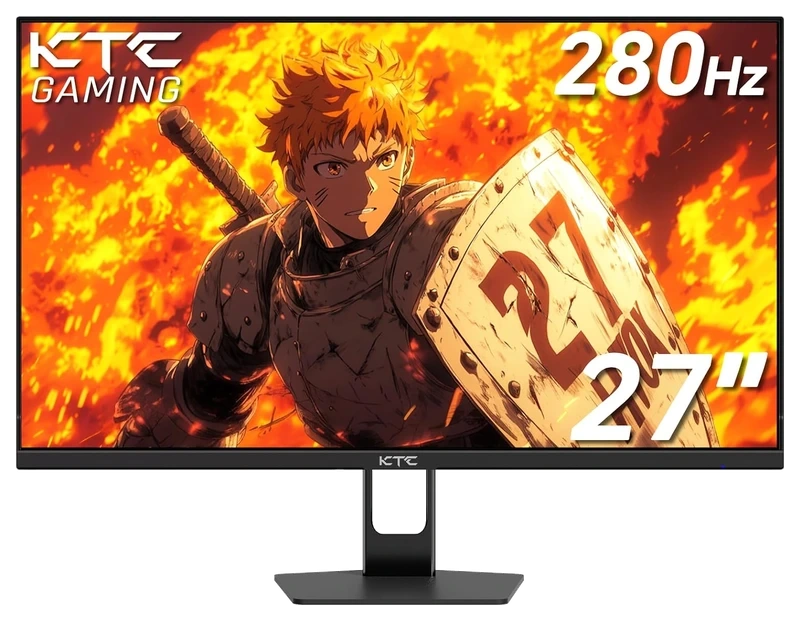
Verified Playtime
765verified hours
- Rank 35.
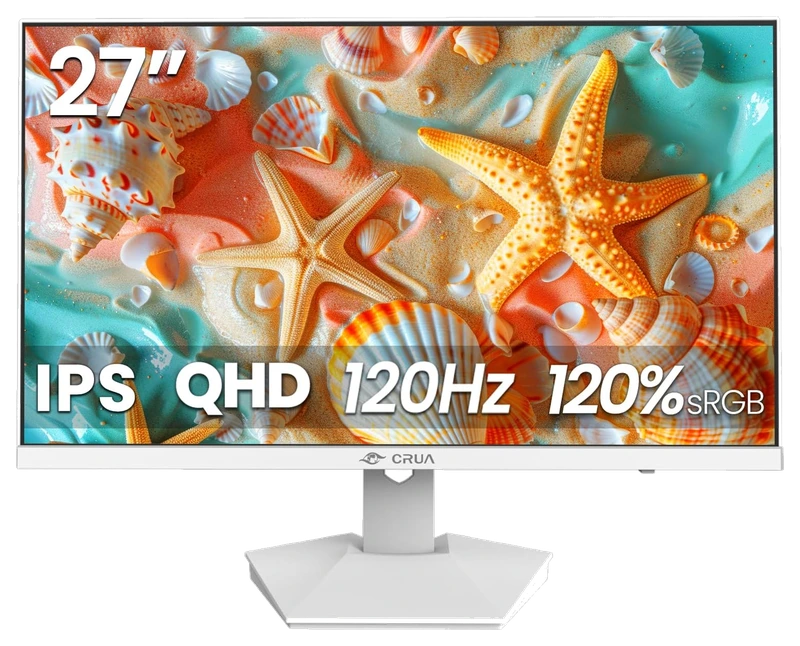
Verified Playtime
645verified hours
- Rank 36.
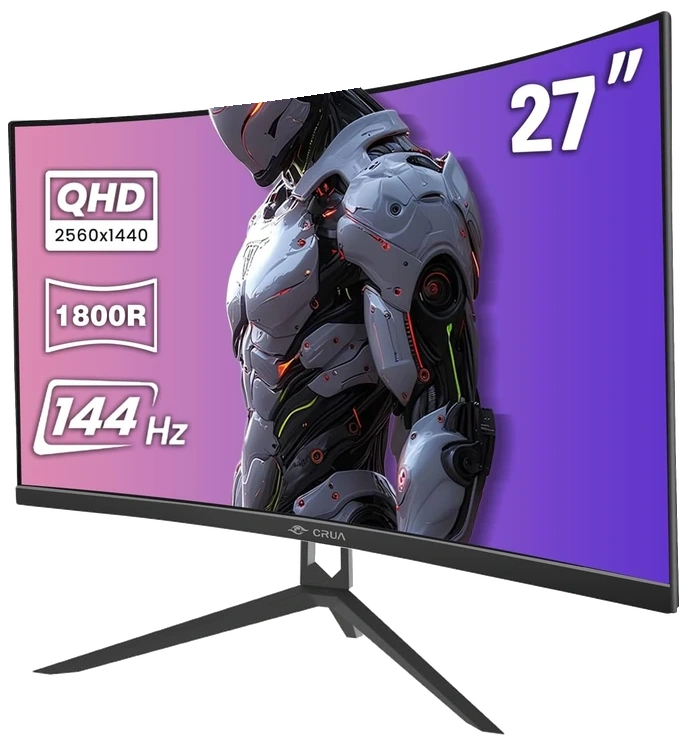
Verified Playtime
598verified hours
- Rank 37.
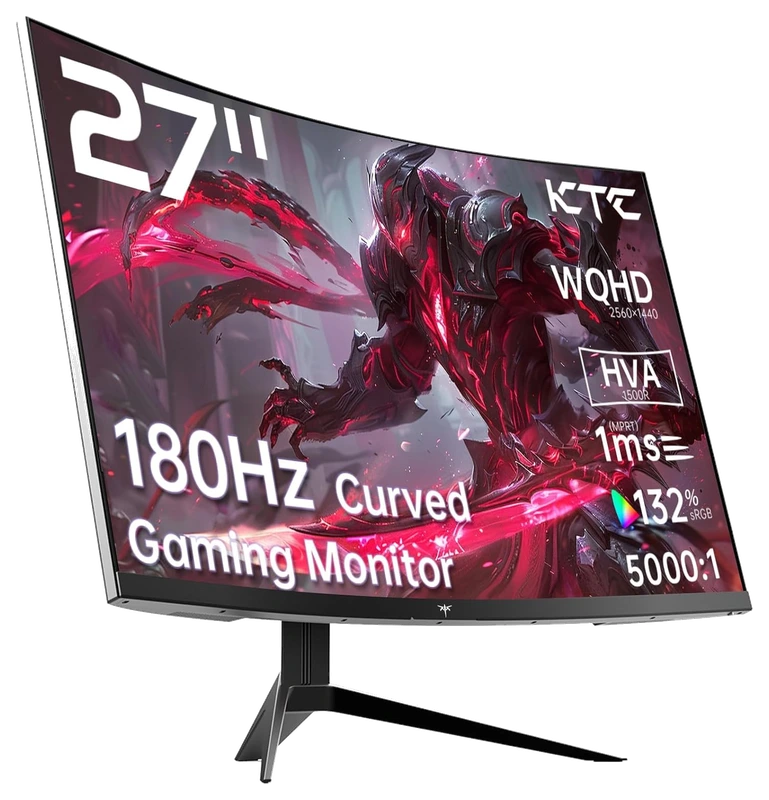
Verified Playtime
597verified hours
- Rank 38.
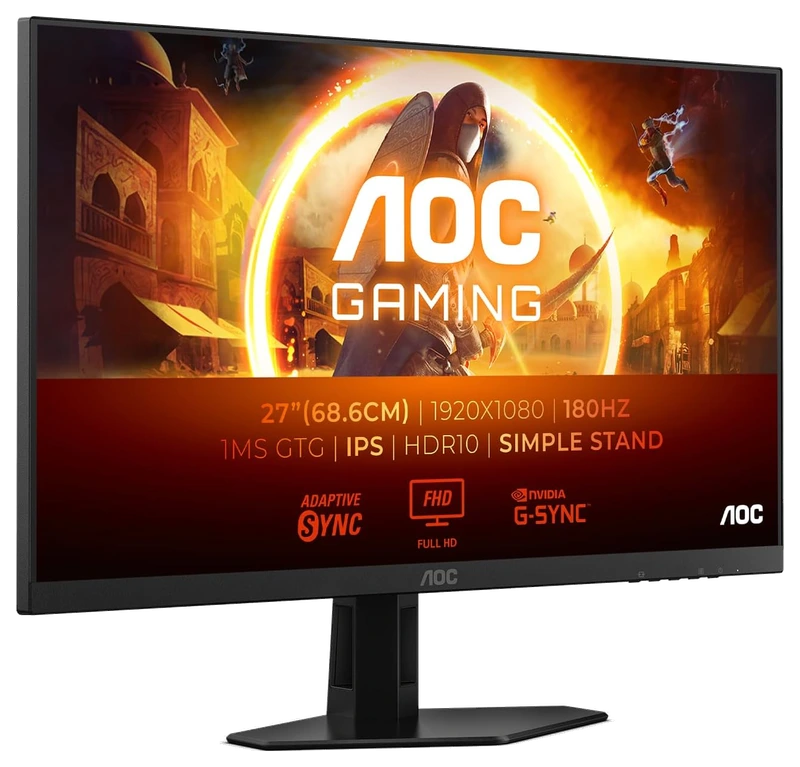
Verified Playtime
558verified hours
- Rank 39.
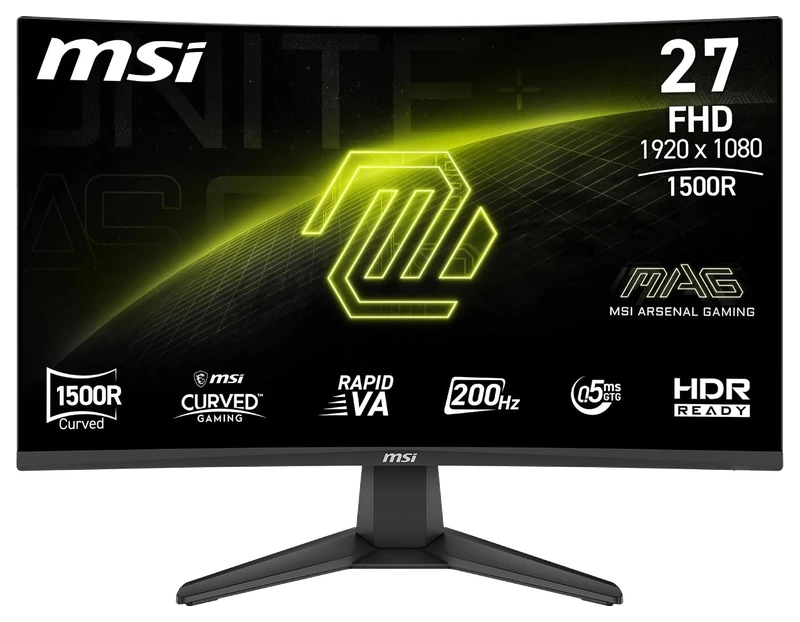
Verified Playtime
556verified hours
- Rank 40.
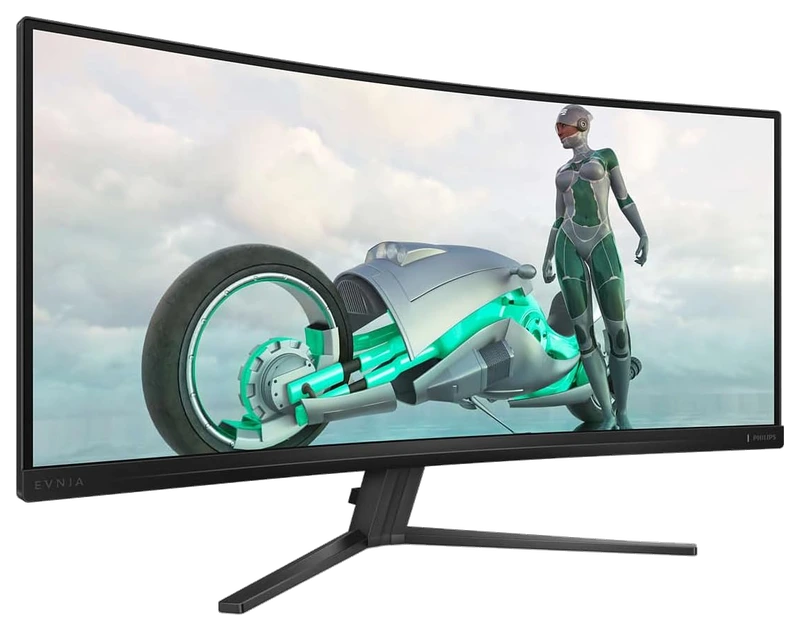
Verified Playtime
555verified hours
- Rank 41.
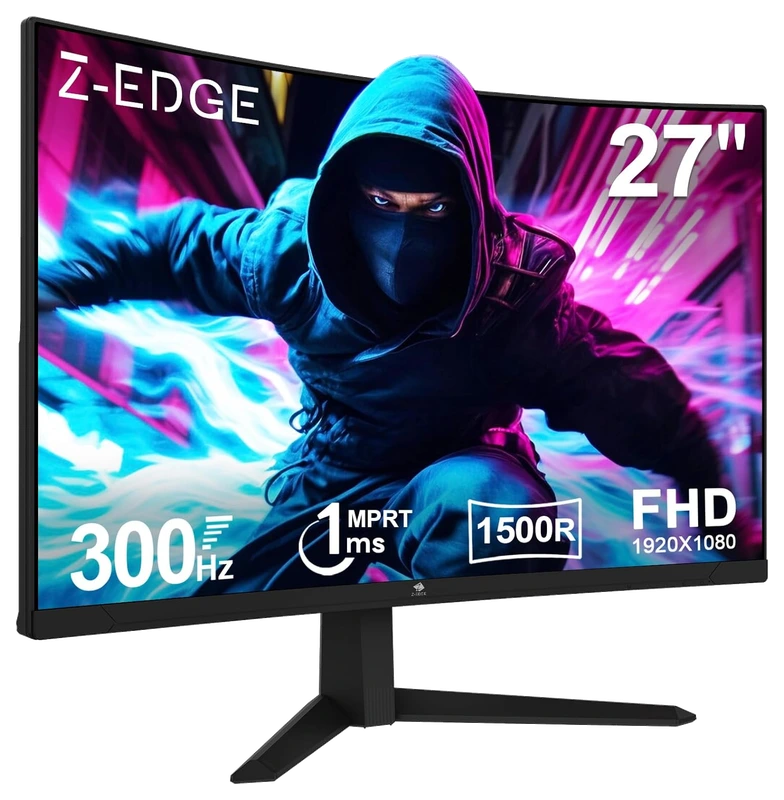
Verified Playtime
518verified hours
- Rank 42.
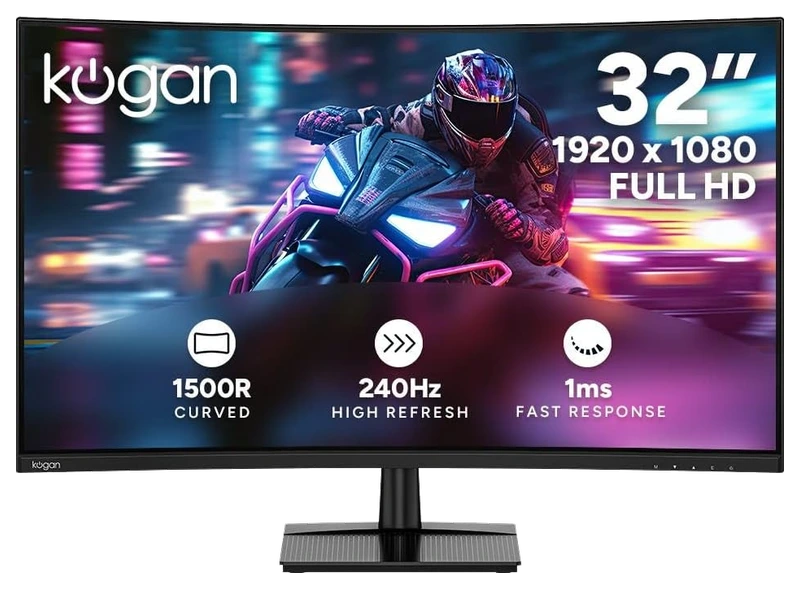
Verified Playtime
517verified hours
- Rank 43.
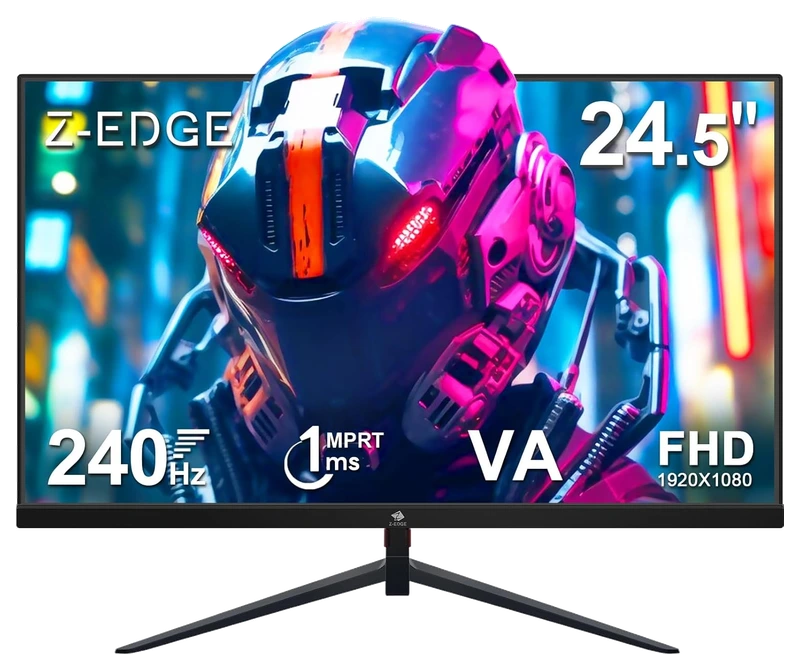
Verified Playtime
516verified hours
- Rank 44.
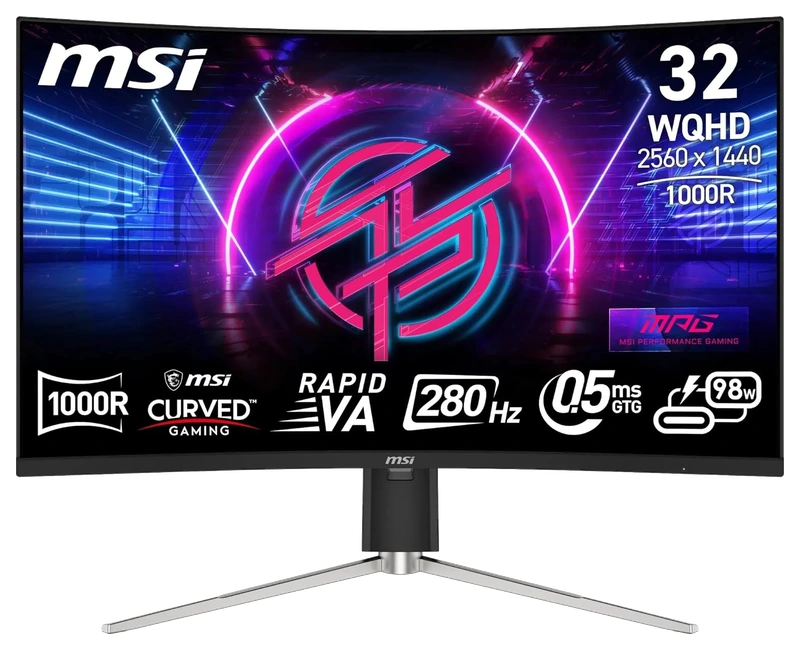
Verified Playtime
515verified hours
- Rank 45.
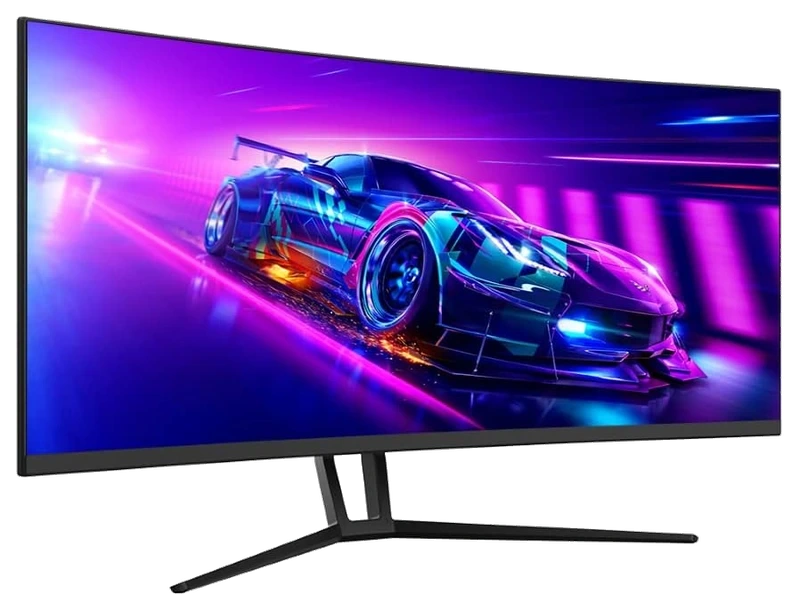
Verified Playtime
514verified hours
- Rank 46.
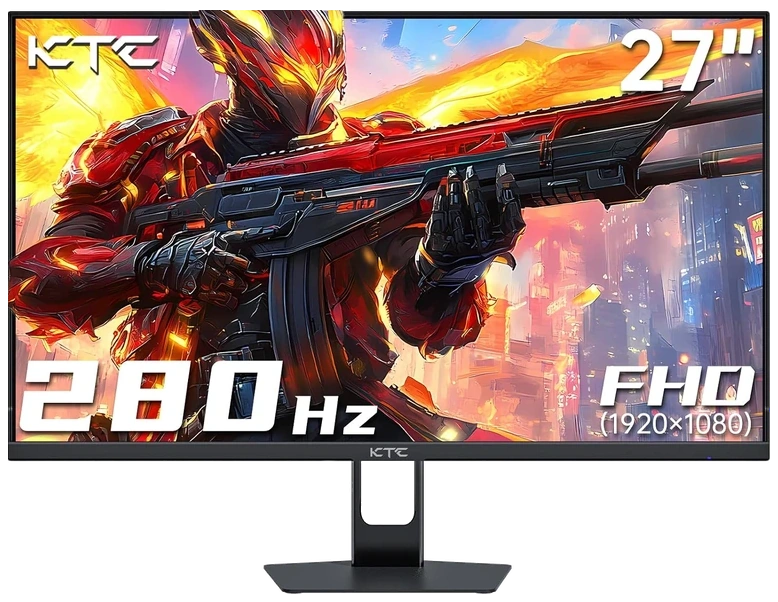
Verified Playtime
513verified hours
- Rank 47.
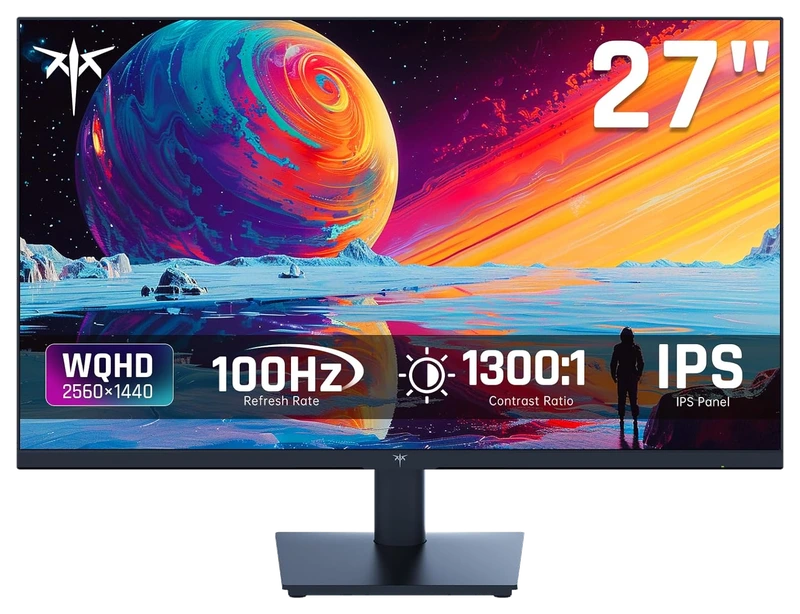
Verified Playtime
512verified hours
- Rank 48.
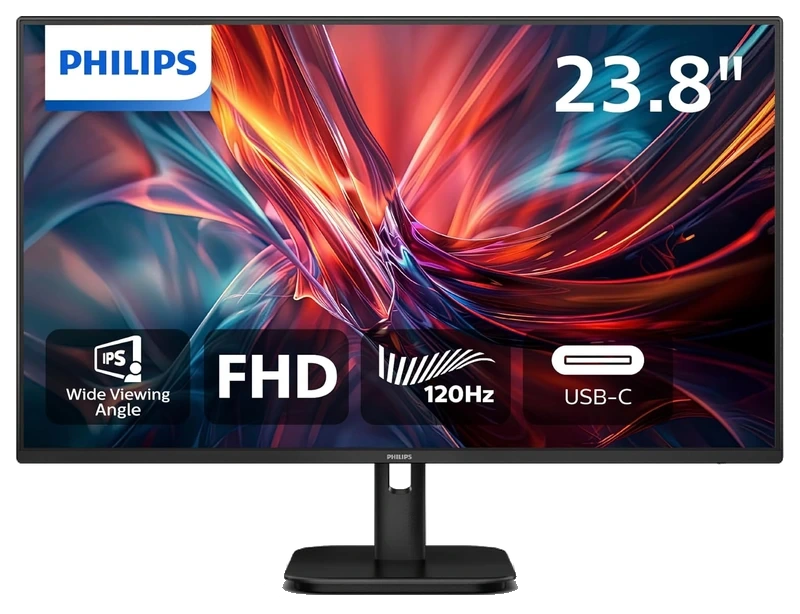
Verified Playtime
511verified hours
- Rank 49.
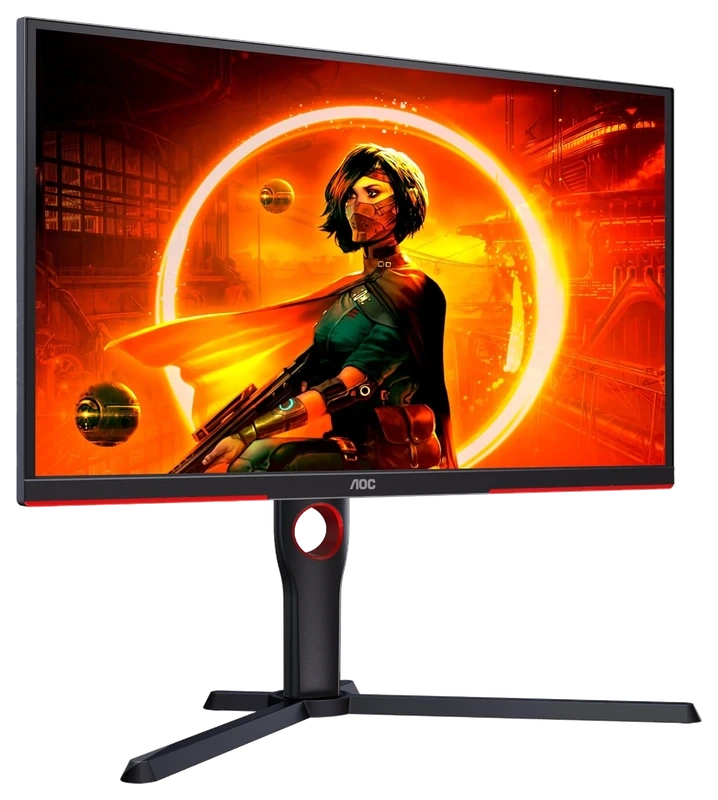
Verified Playtime
478verified hours
- Rank 50.
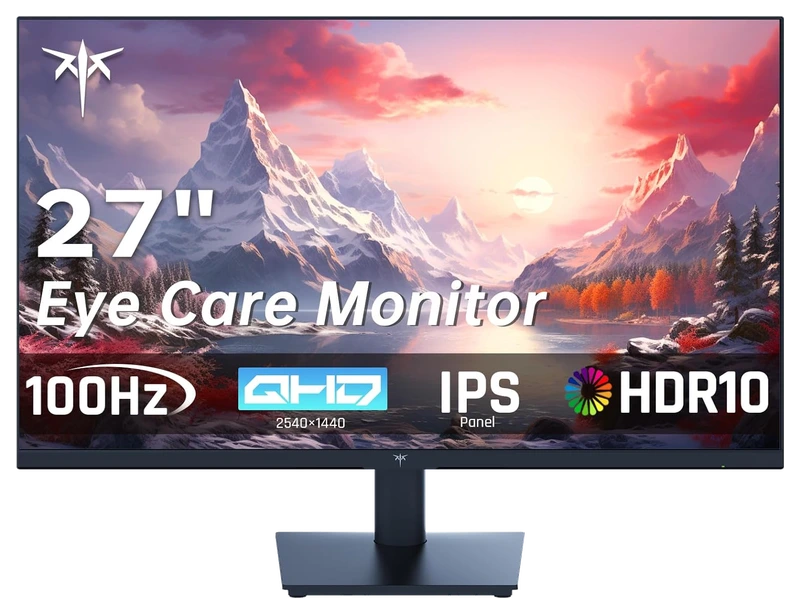
Verified Playtime
477verified hours
- Rank 51.
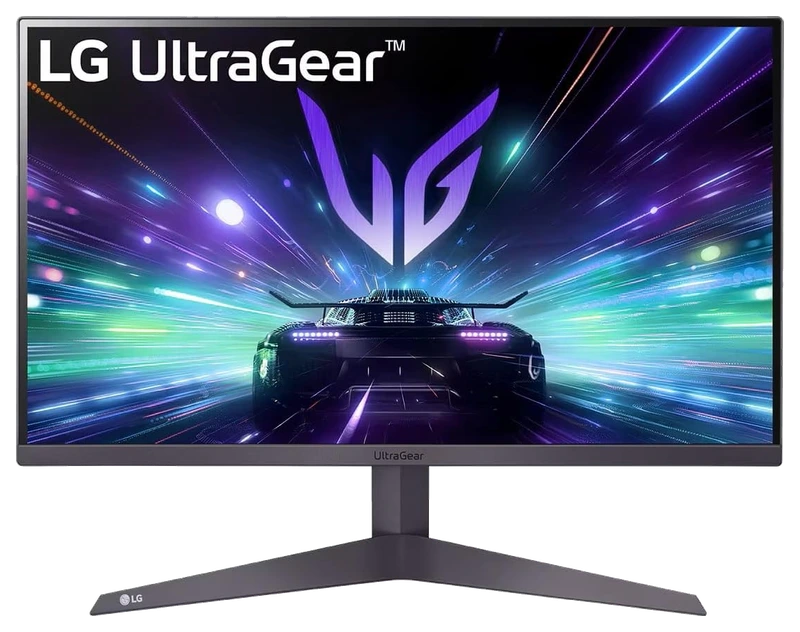
Verified Playtime
476verified hours
- Rank 52.
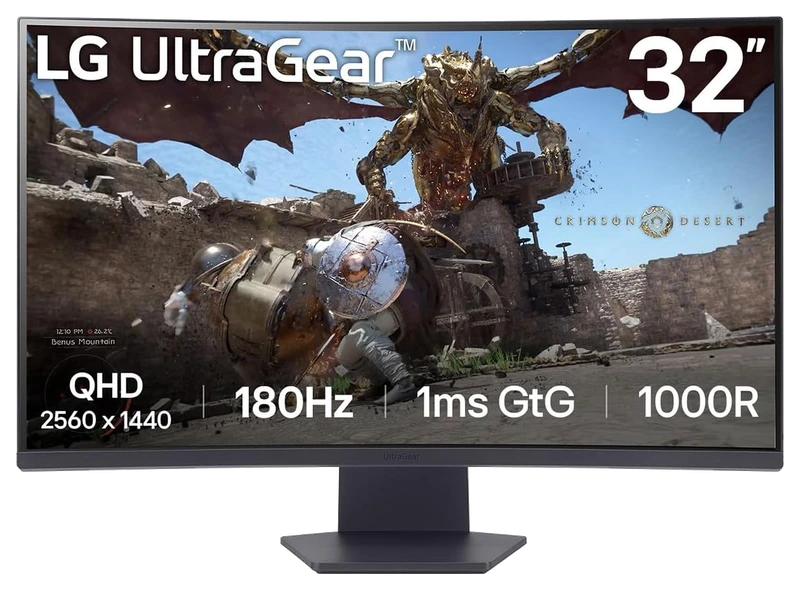
Verified Playtime
475verified hours
- Rank 53.
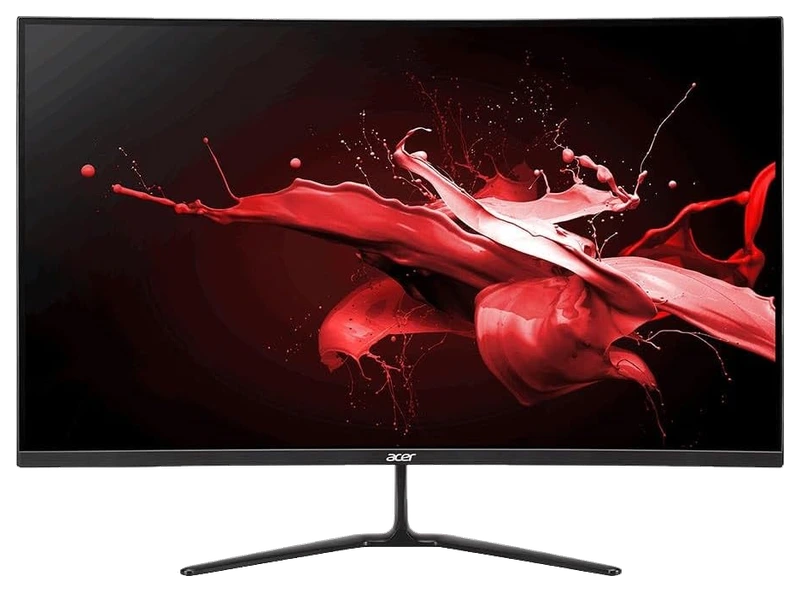
Verified Playtime
474verified hours
- Rank 54.
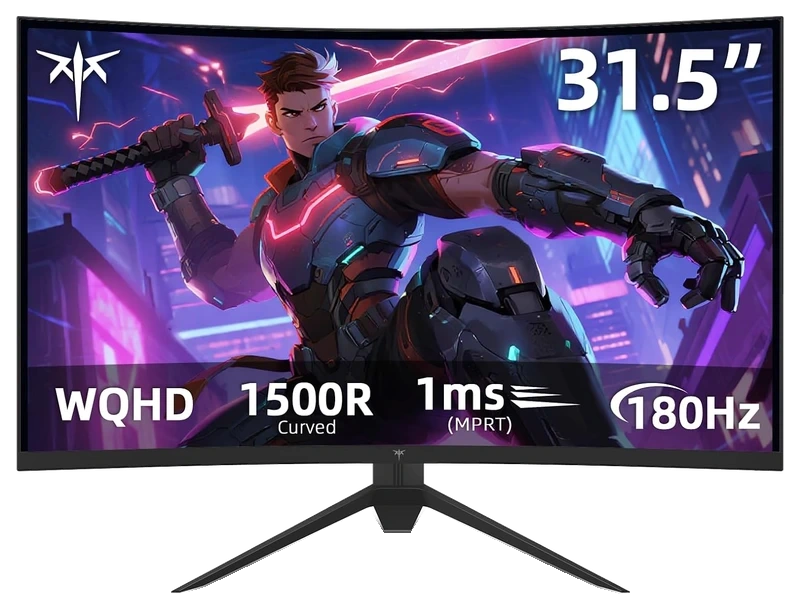
Verified Playtime
438verified hours
- Rank 55.
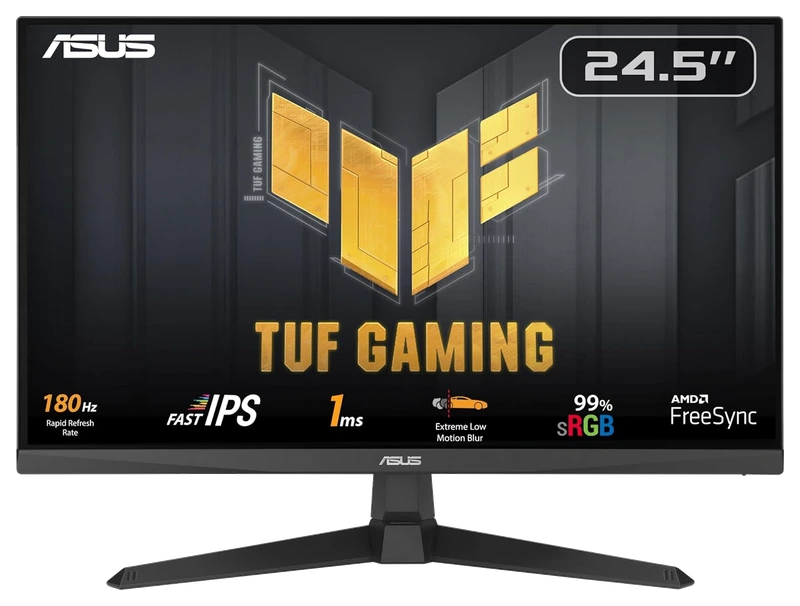
Verified Playtime
437verified hours
- Rank 56.
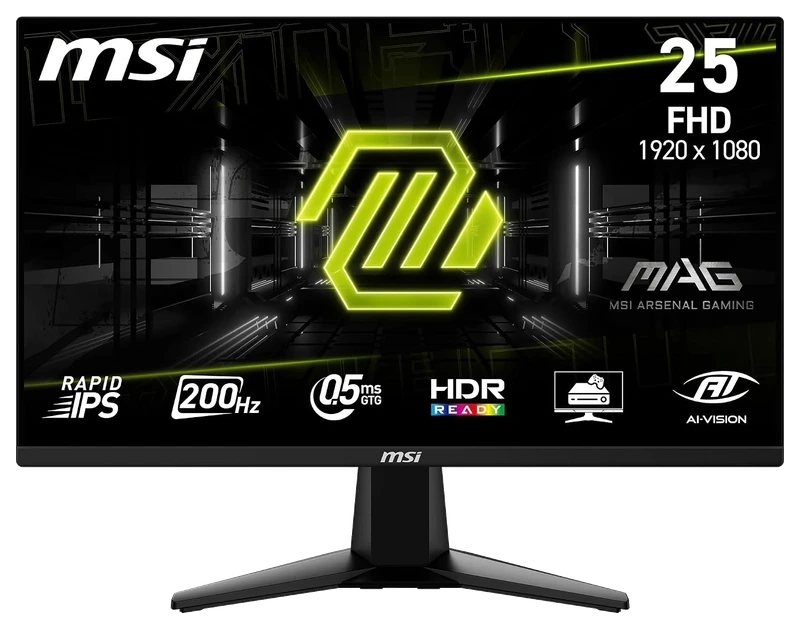
Verified Playtime
436verified hours
- Rank 57.
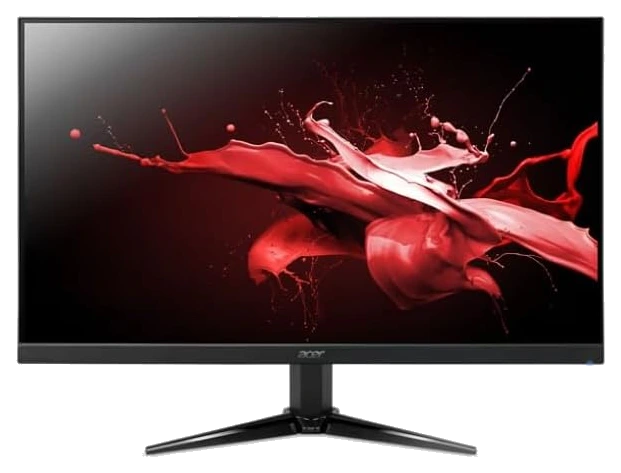
Verified Playtime
360verified hours
- Rank 58.
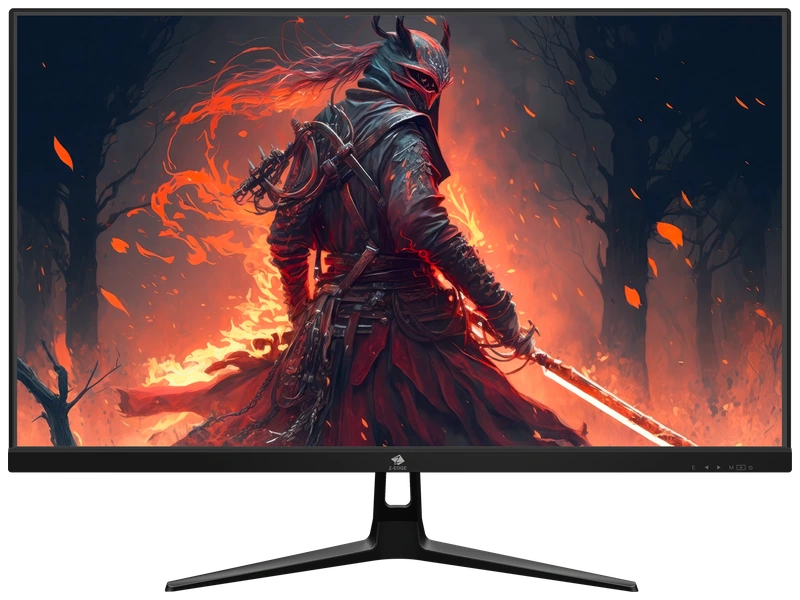
Verified Playtime
358verified hours
- Rank 59.
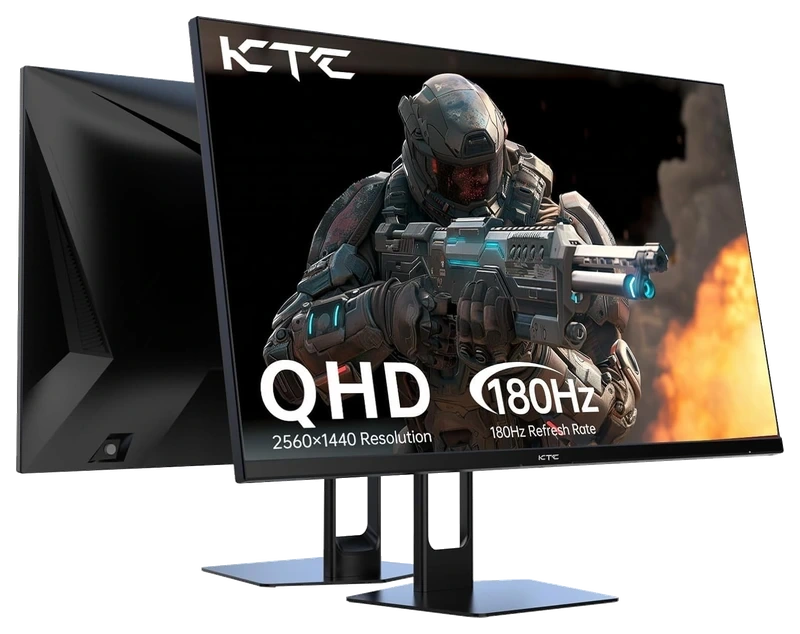
Verified Playtime
357verified hours
- Rank 60.
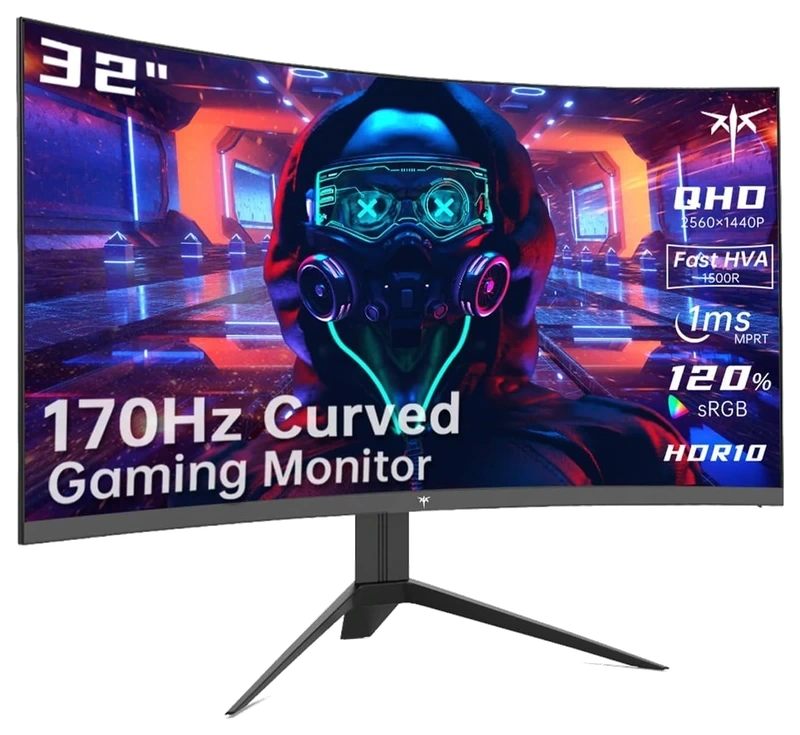
Verified Playtime
356verified hours
- Rank 61.
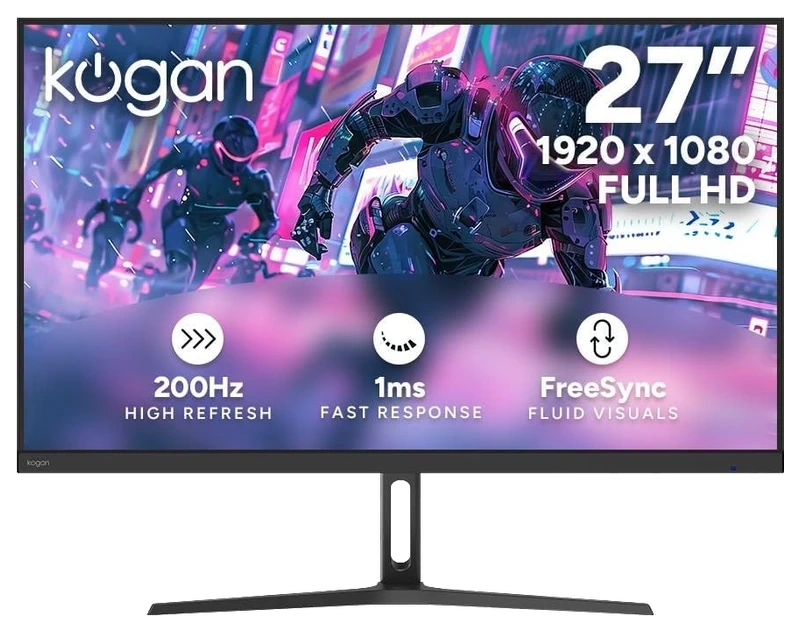
Verified Playtime
355verified hours
- Rank 62.
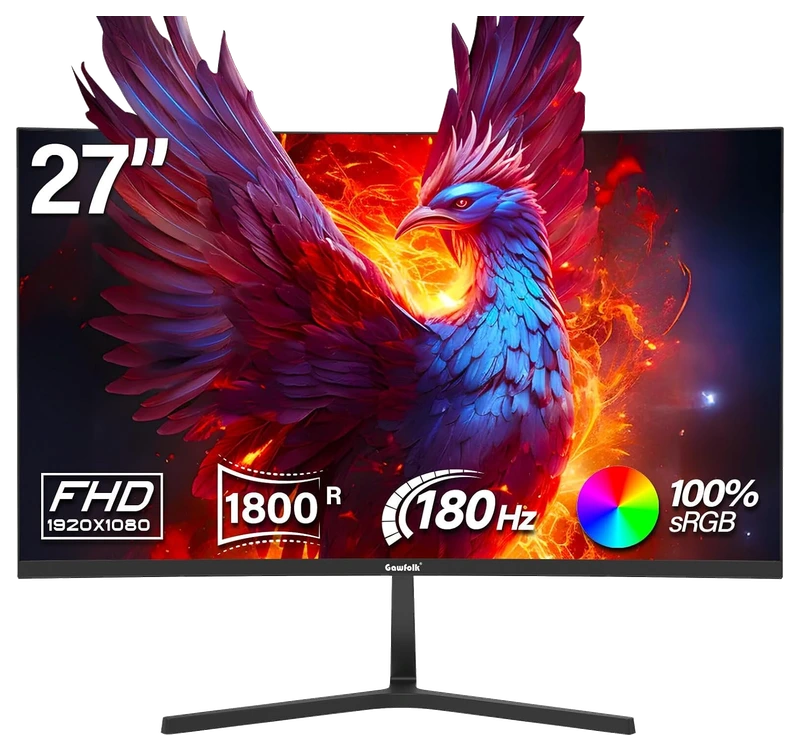
Verified Playtime
354verified hours
- Rank 63.
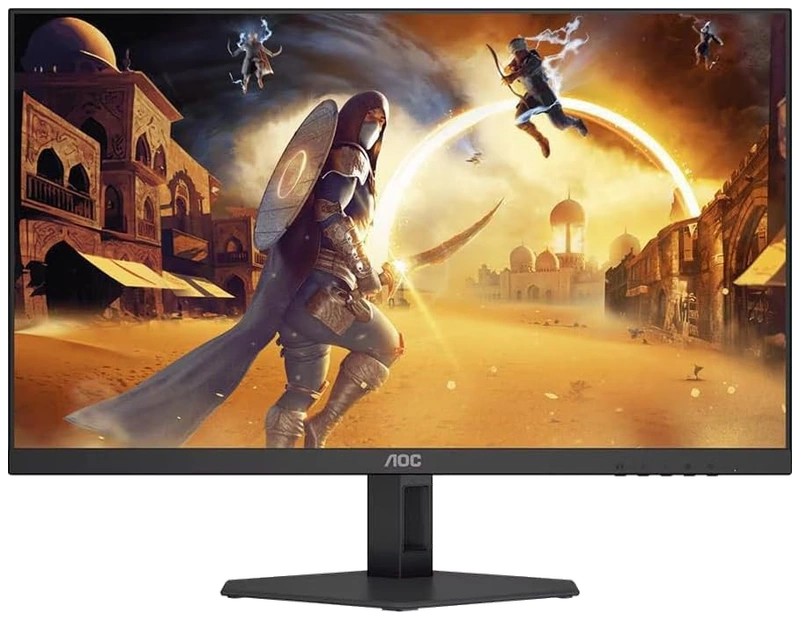
Verified Playtime
318verified hours
- Rank 64.
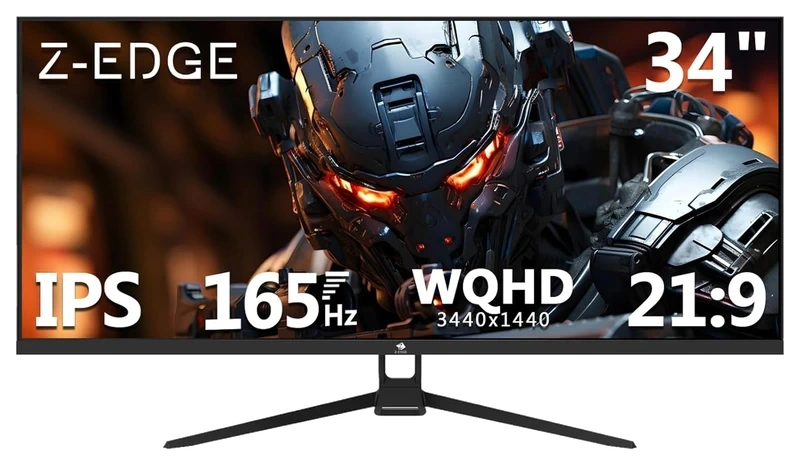
Verified Playtime
317verified hours
- Rank 65.
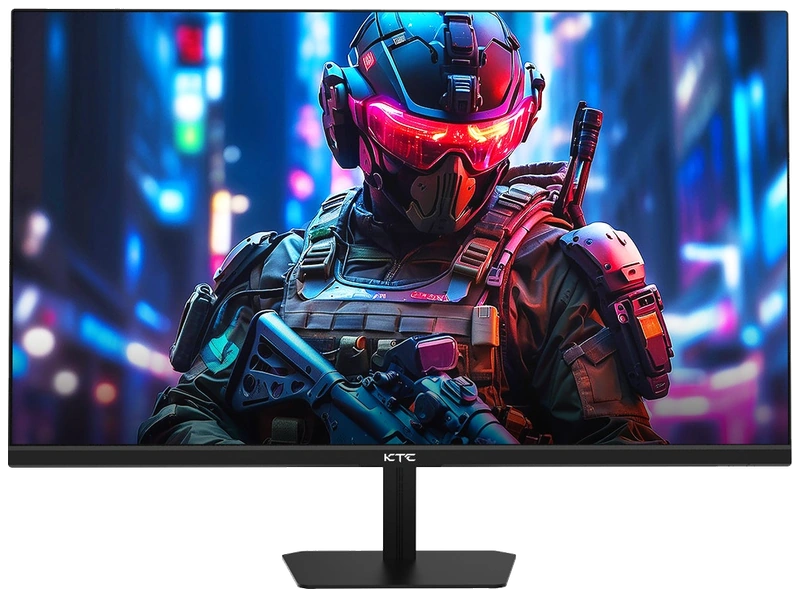
Verified Playtime
278verified hours
- Rank 66.
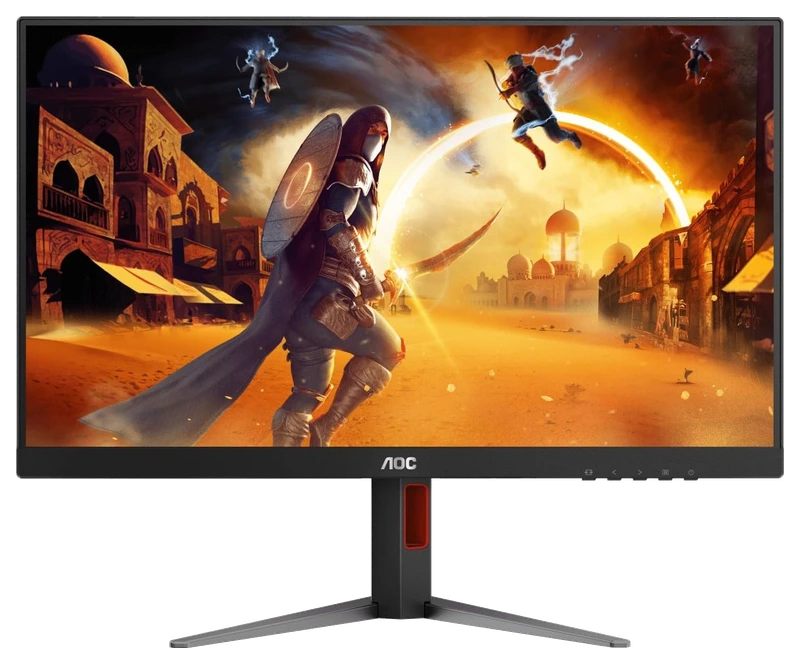
Verified Playtime
277verified hours
- Rank 67.
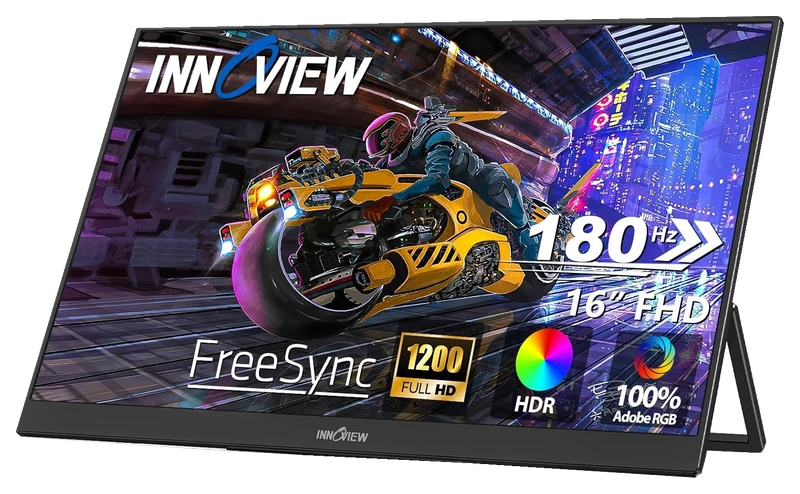
Verified Playtime
276verified hours
- Rank 68.
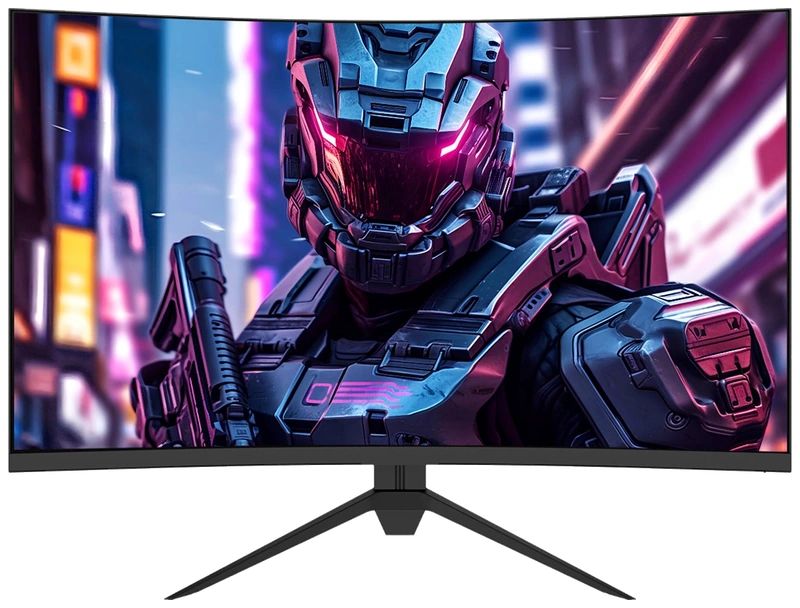
Verified Playtime
275verified hours
- Rank 69.
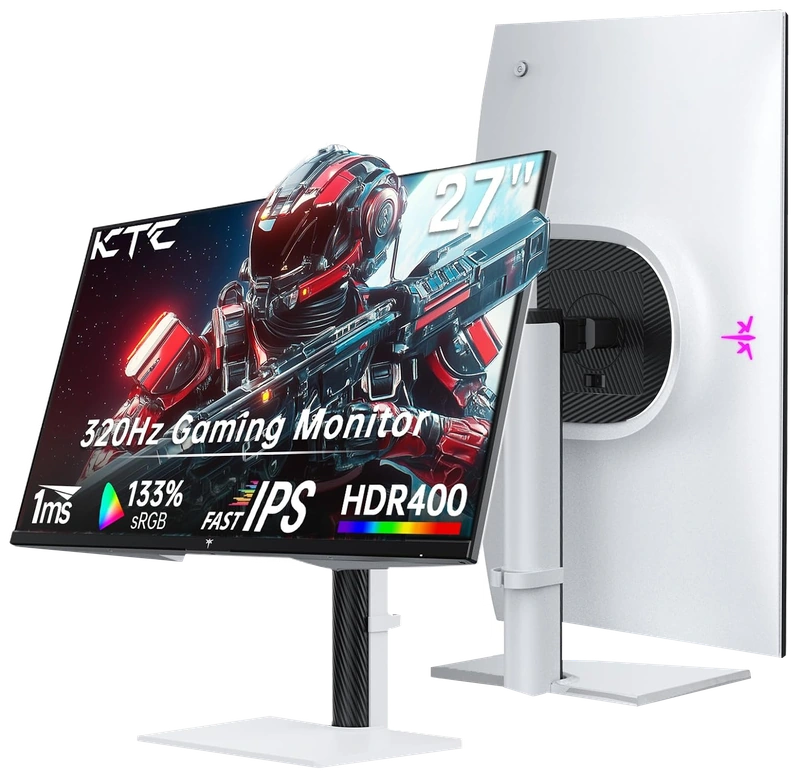
Verified Playtime
274verified hours
- Rank 70.
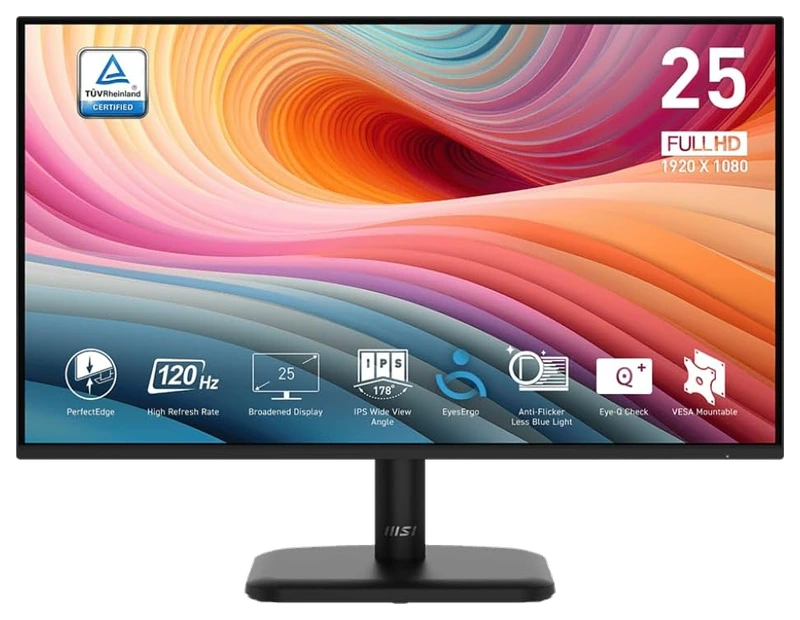
Verified Playtime
273verified hours
- Rank 71.
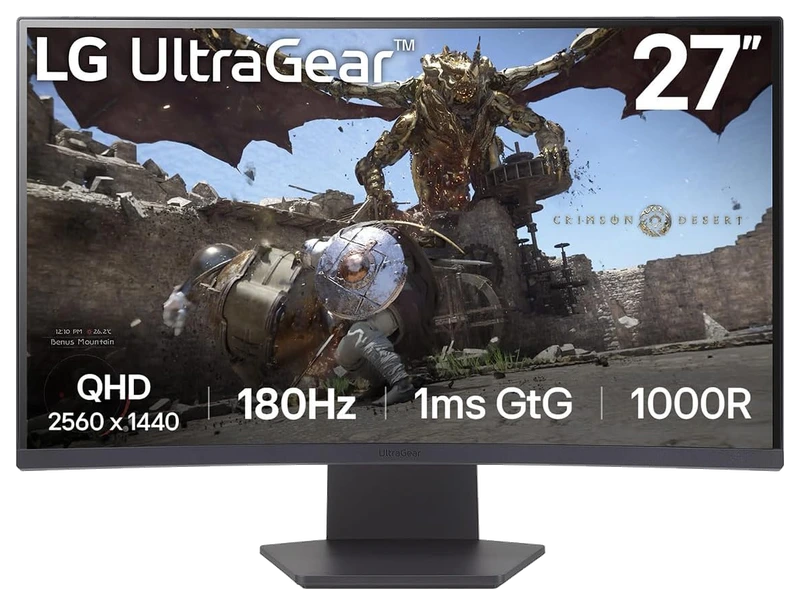
Verified Playtime
238verified hours
- Rank 72.
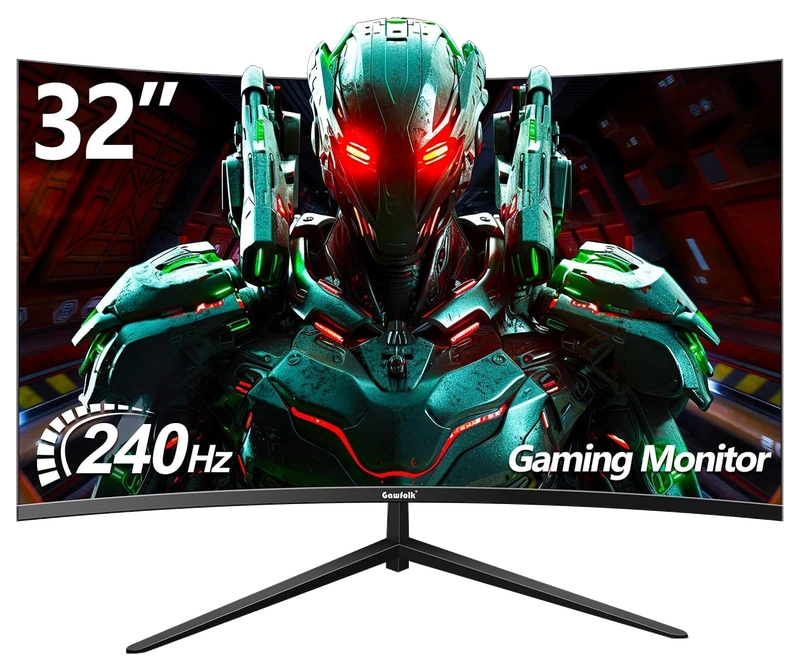
Verified Playtime
237verified hours
- Rank 73.
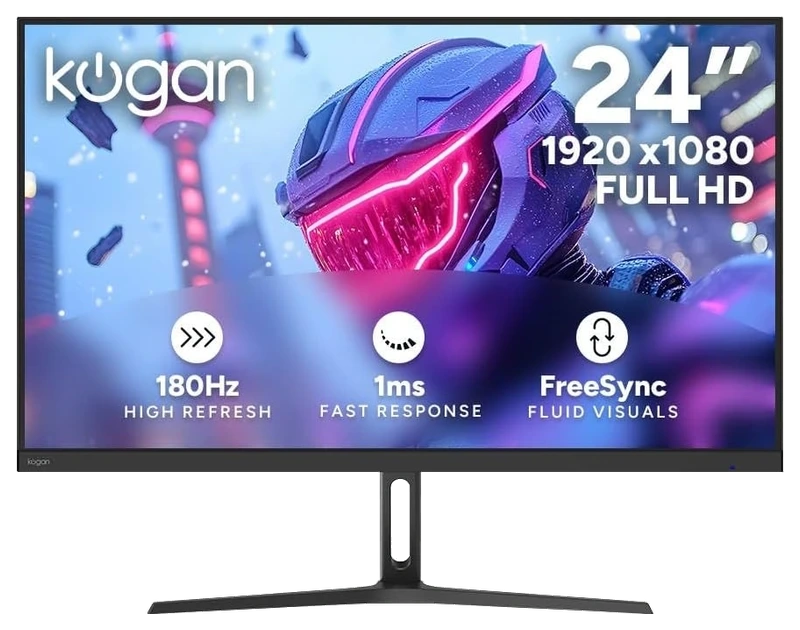
Verified Playtime
236verified hours
- Rank 74.
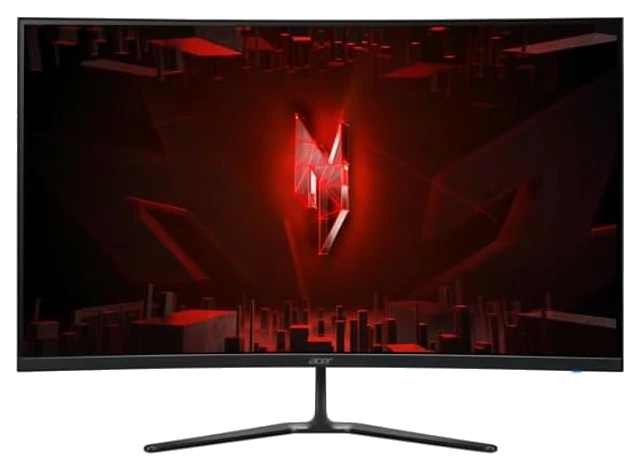
Verified Playtime
198verified hours
- Rank 75.
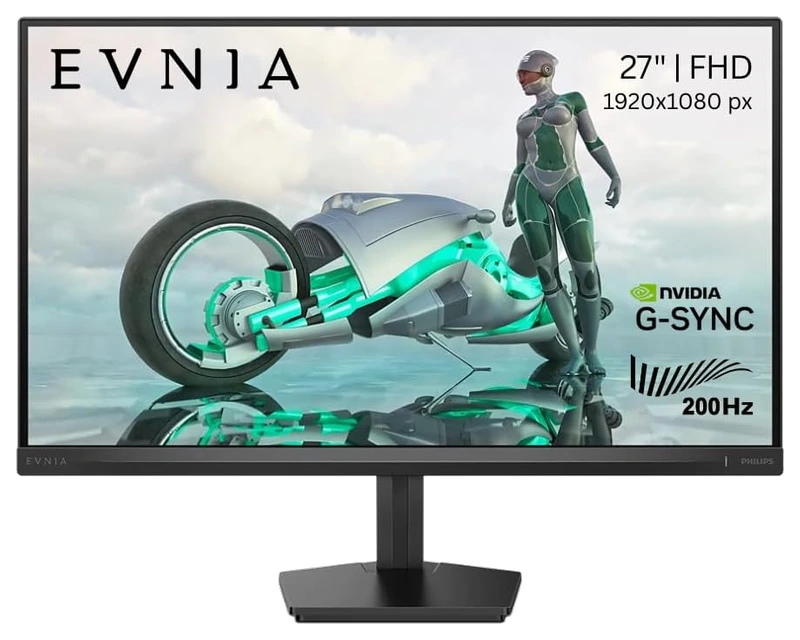
Verified Playtime
197verified hours
- Rank 76.
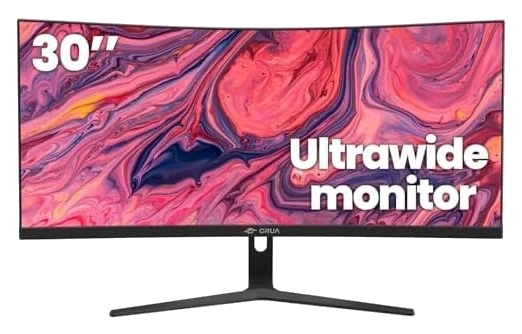
Verified Playtime
196verified hours
- Rank 77.
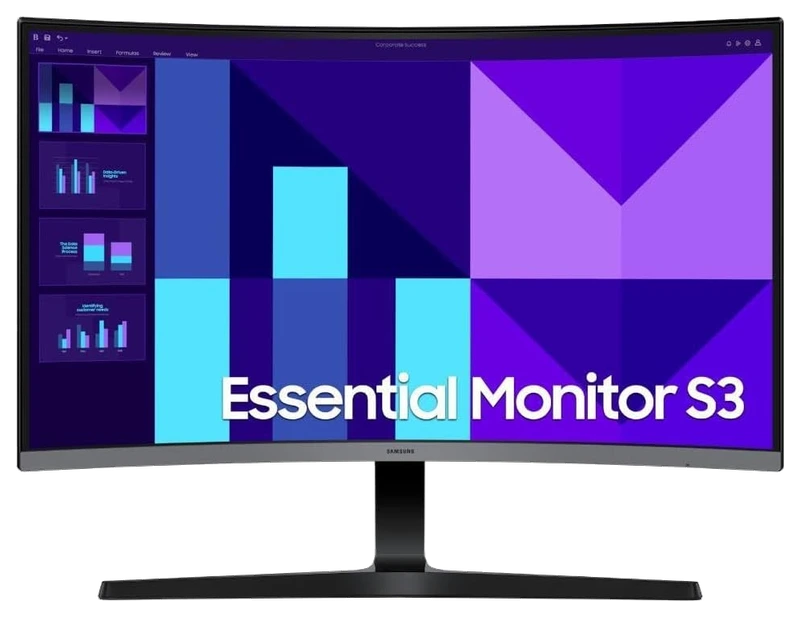
Verified Playtime
195verified hours
- Rank 78.
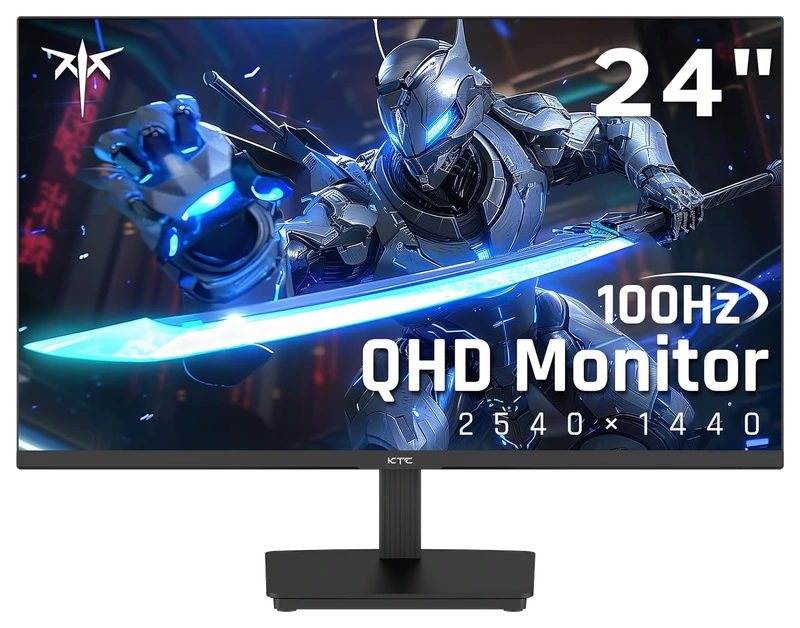
Verified Playtime
158verified hours
- Rank 79.
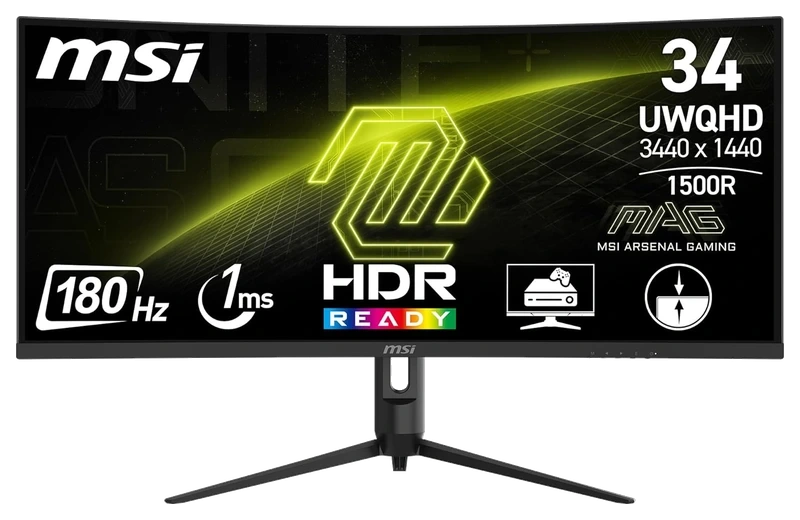
Verified Playtime
157verified hours
- Rank 80.
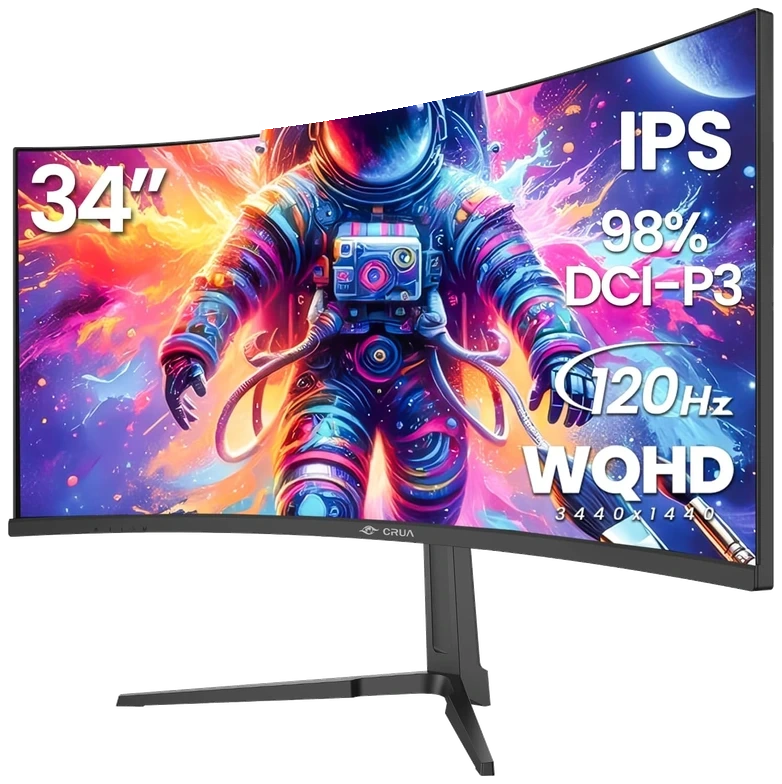
Verified Playtime
156verified hours
- Rank 81.
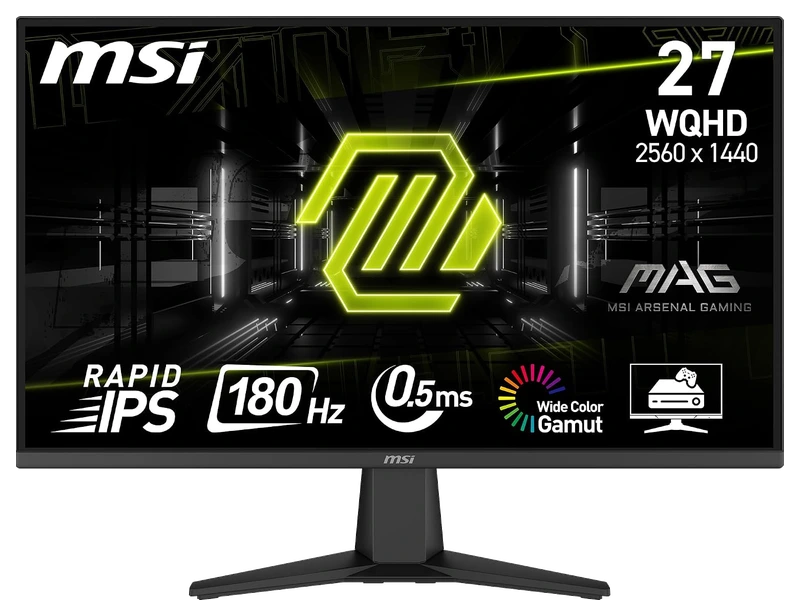
Verified Playtime
118verified hours
- Rank 82.
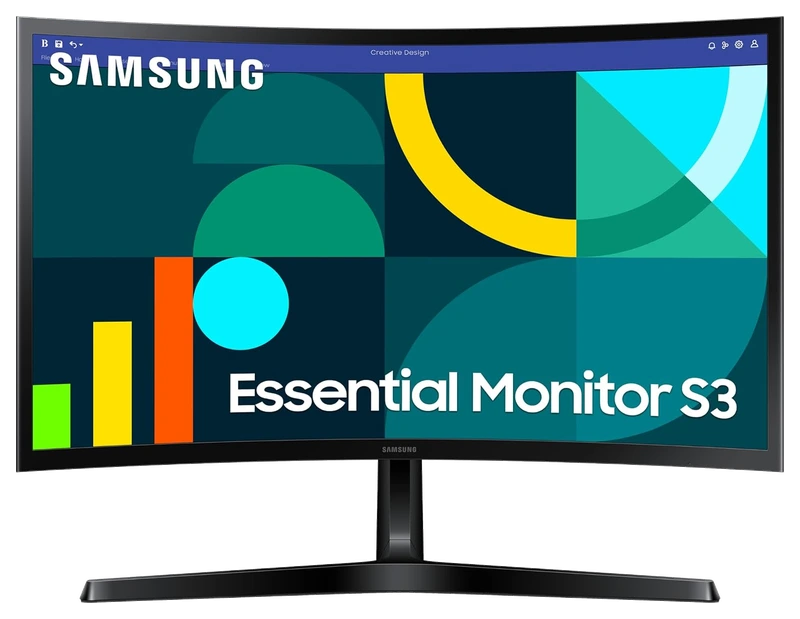
Verified Playtime
117verified hours
- Rank 83.
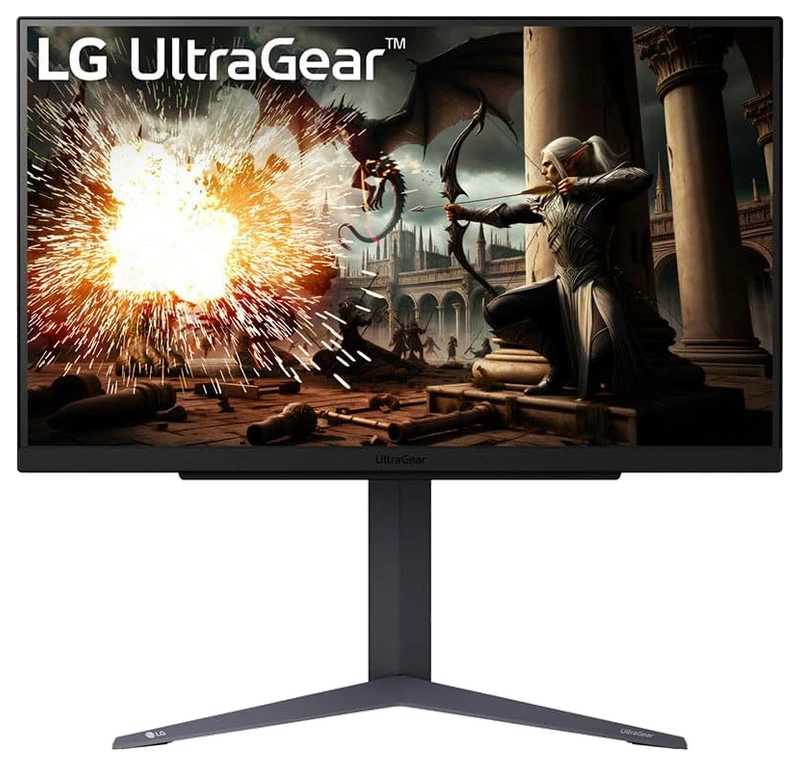
Verified Playtime
115verified hours
- Rank 84.
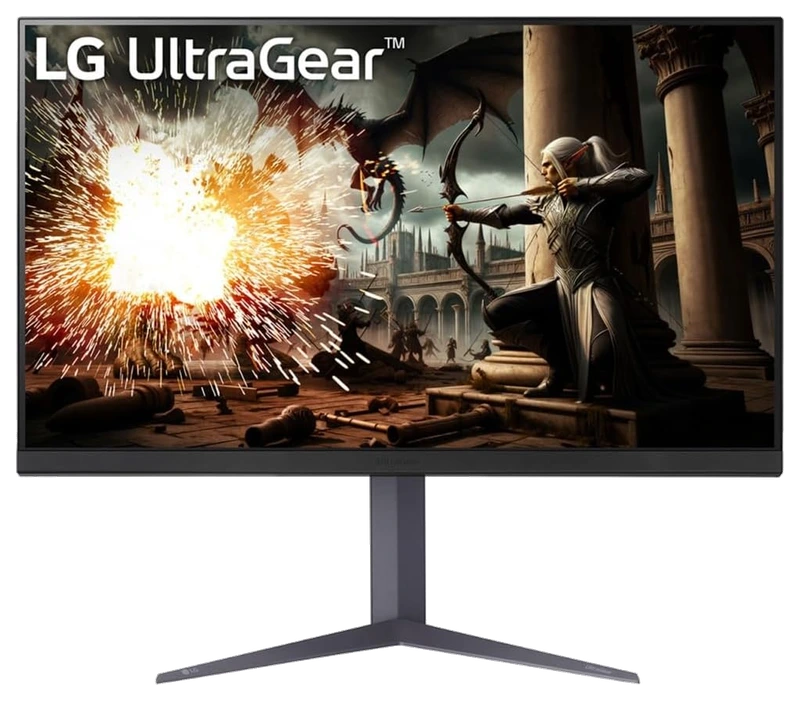
Verified Playtime
114verified hours
- Rank 85.
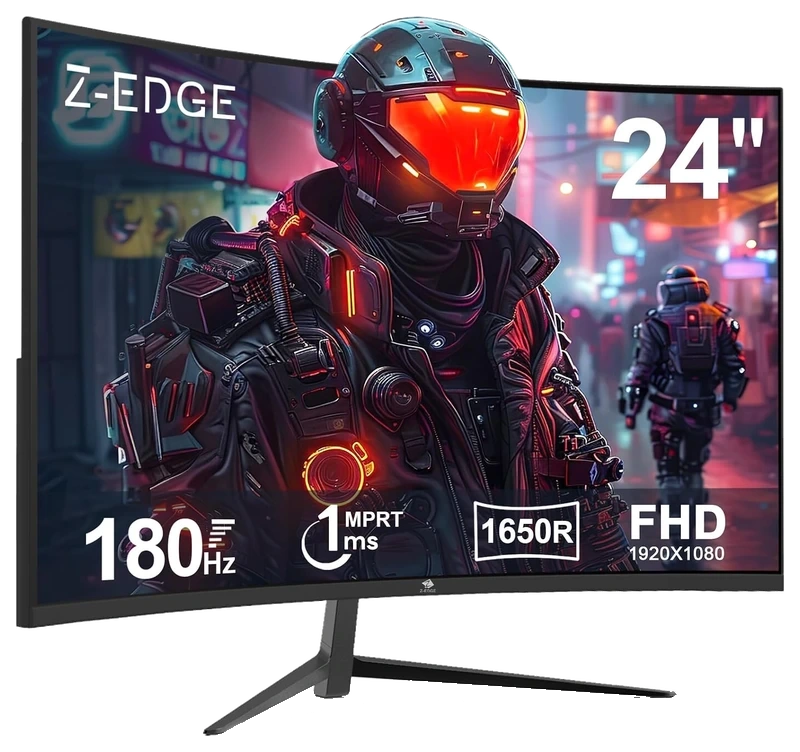
Verified Playtime
113verified hours
- Rank 86.
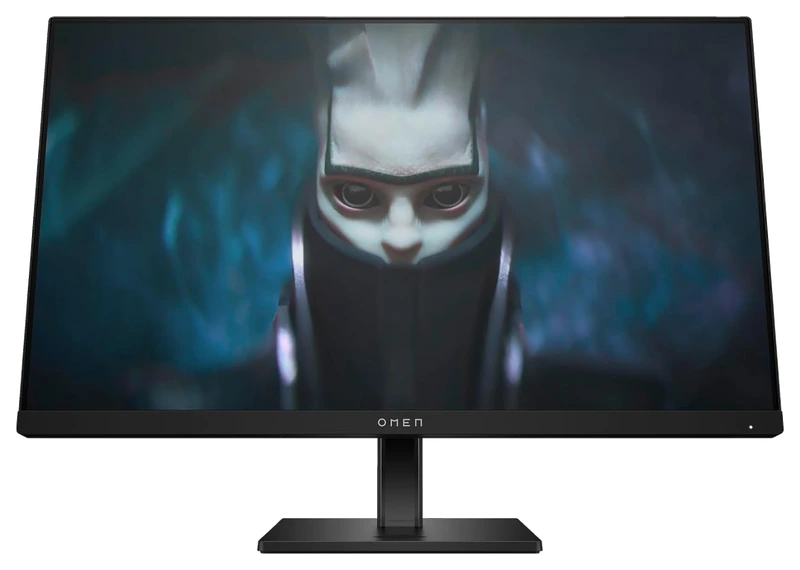
Verified Playtime
78verified hours
- Rank 87.
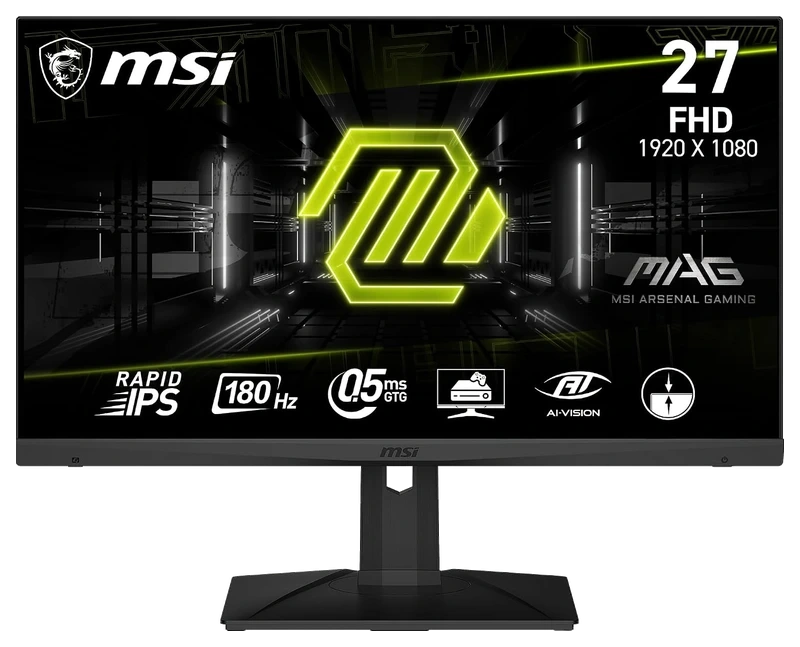
Verified Playtime
77verified hours
- Rank 88.
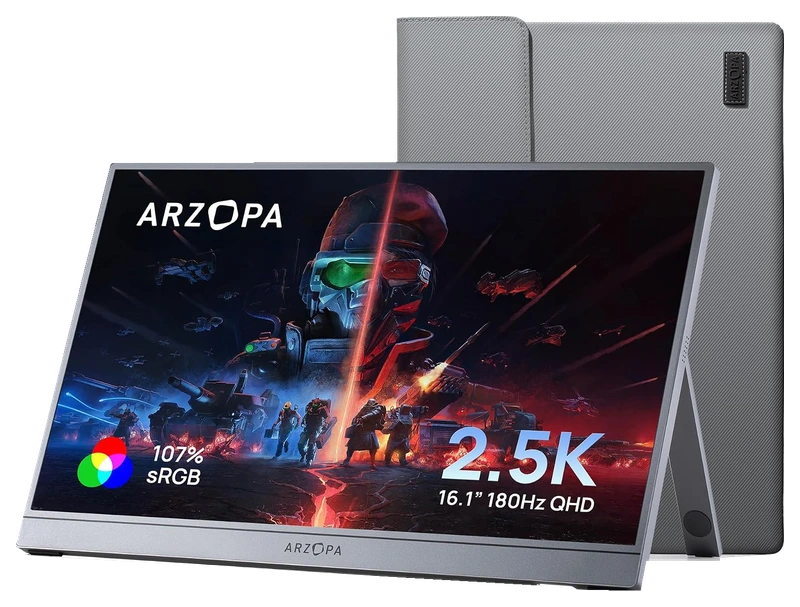
Verified Playtime
76verified hours
- Rank 89.
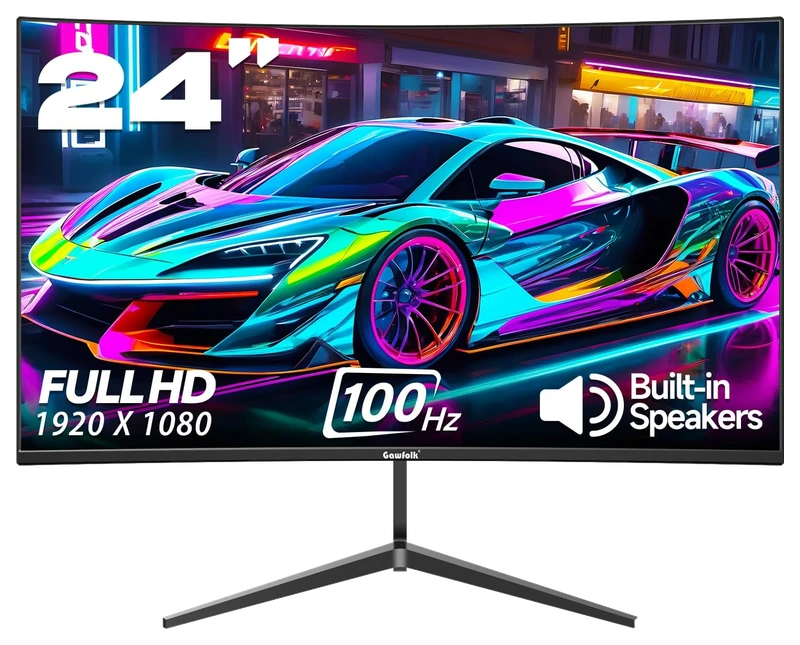
Verified Playtime
75verified hours
- Rank 90.
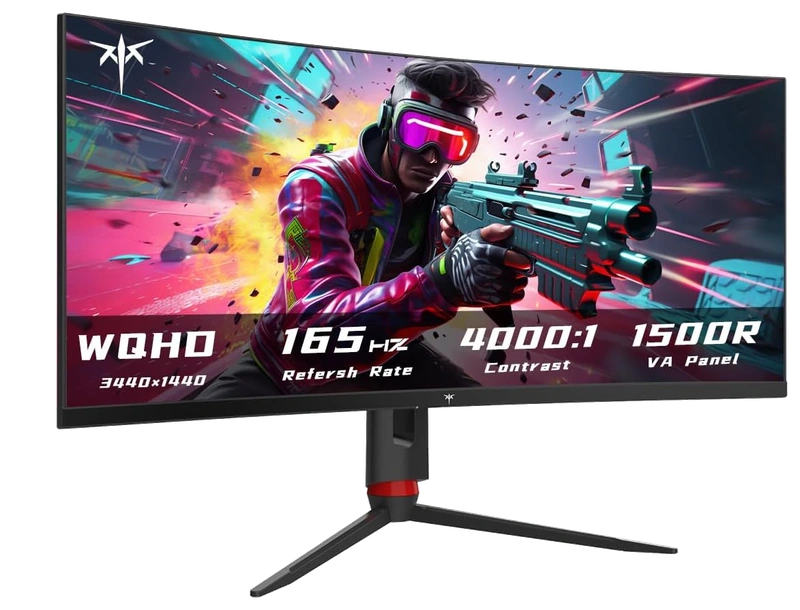
Verified Playtime
74verified hours
- Rank 91.
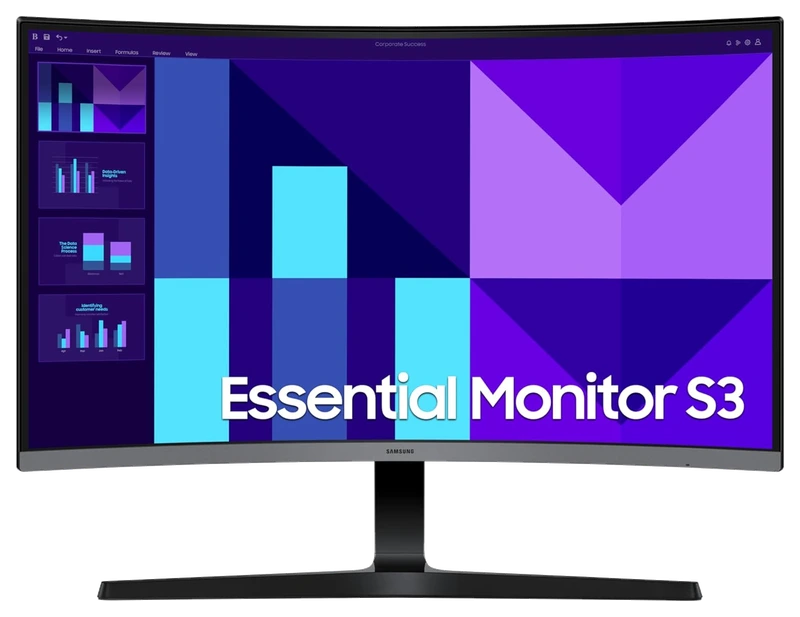
Verified Playtime
73verified hours
- Rank 92.
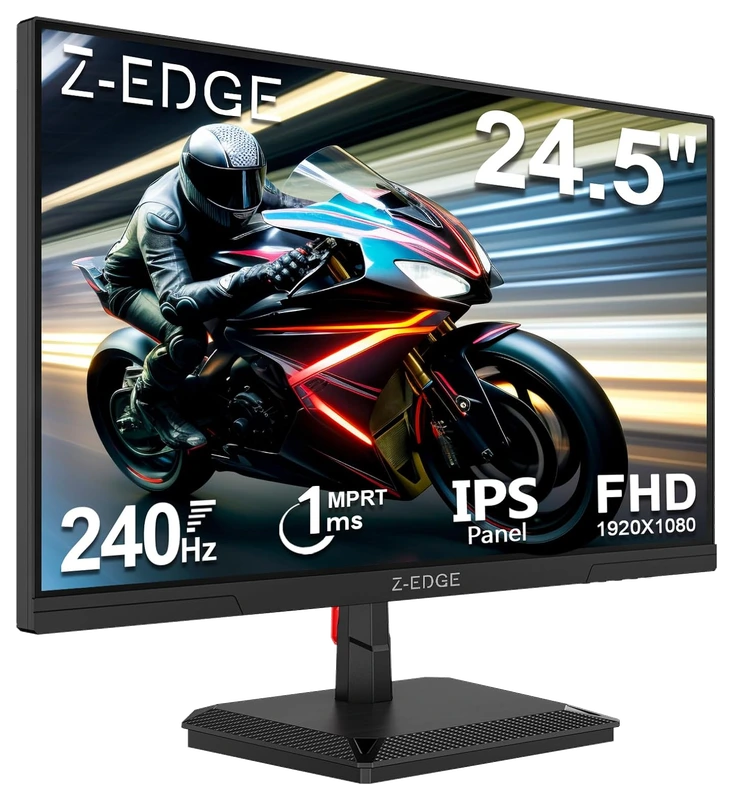
Verified Playtime
72verified hours
- Rank 93.
Verified Playtime
38verified hours
- Rank 94.
Verified Playtime
37verified hours
Your needs come first
Find your fit. Then compare the hours.
Choose resolution and size together
Check the native resolution, screen dimensions and viewing distance. A 4K shortlist must contain eligible 4K displays—not Full HD or QHD alternatives ranked under a 4K title. Consider the settings and frame rates your system can deliver at the chosen resolution.
Verify the complete signal path
Confirm the resolution and refresh rate supported by the monitor’s actual ports, your graphics hardware or console, and the cable you plan to use. Check variable-refresh support for that combination instead of relying on the headline refresh rate alone.
Look beyond the advertised numbers
Use independent testing for response behaviour, input lag and motion clarity at the refresh rates you will use. If HDR or colour work matters, look for measurements of those capabilities. Verified playtime answers a different question: player backing.
Check desk fit and ownership costs
Allow for the stand footprint, mounting support and adjustment range. Check the warranty terms for the exact panel and the current regional price. A higher-ranked display is not a better choice if it cannot fit your desk or deliver the modes your setup needs.
Verified Hours are not measurements of pixel response, input lag, HDR performance or colour accuracy. A resolution or refresh-rate claim must describe the exact model and the input mode you intend to use.
Read the guide
From ranking to shortlist
Choose resolution and refresh rate together
Compare frame rates from your games at the native resolution and image settings you want. Check whether you prefer more screen detail, more consistent motion or a balance of both.
Verify the complete connection
Confirm the exact input's supported resolution, refresh and variable-refresh modes against your graphics hardware and cable. In Windows 11, open Settings > System > Display > Advanced display, select the correct screen and check its resolution and refresh rate. A rate marked with an asterisk changes the resolution, so check both values after selecting it.
Separate specifications from measured quality
Look for relevant response, input-lag, contrast and image-quality measurements. A panel label, HDR logo or published ranking cannot supply those results.
Sources for the buying notes
Questions worth asking
Gaming Monitors FAQ
Can I choose a monitor using refresh rate alone?
No. Refresh rate describes screen updates per second: 144Hz has a nominal 6.94ms interval and 240Hz has a 4.17ms interval, calculated as 1,000 divided by Hz. Those intervals are not measured pixel response or input lag. Compare the supported resolution, your game's frame rate, motion measurements, connections and desk fit separately.
What does this Hours.gg guide publish?
Sign in with Steam to read the answer and reveal the leading products.
Reveal with Steam