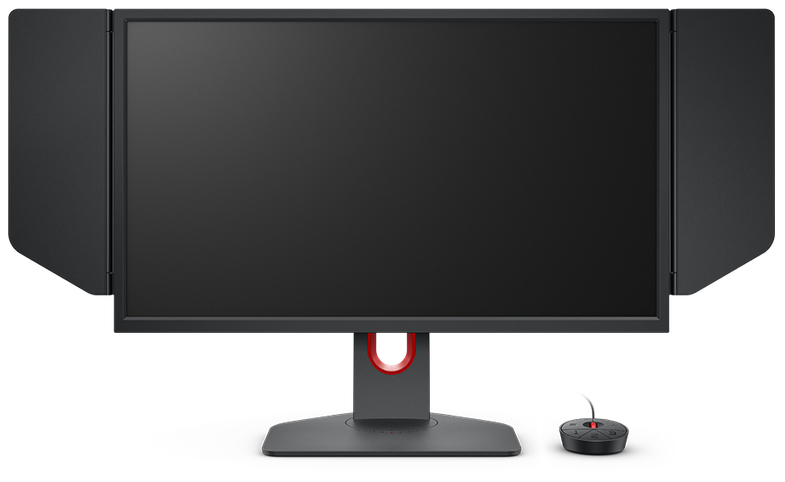
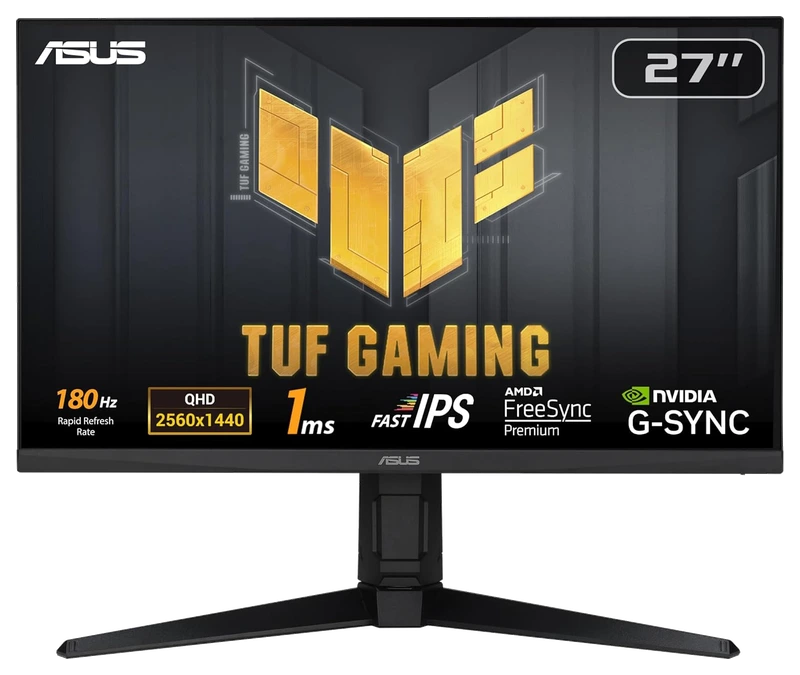
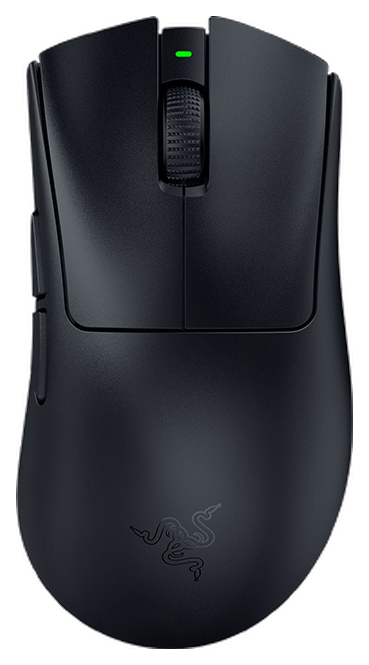
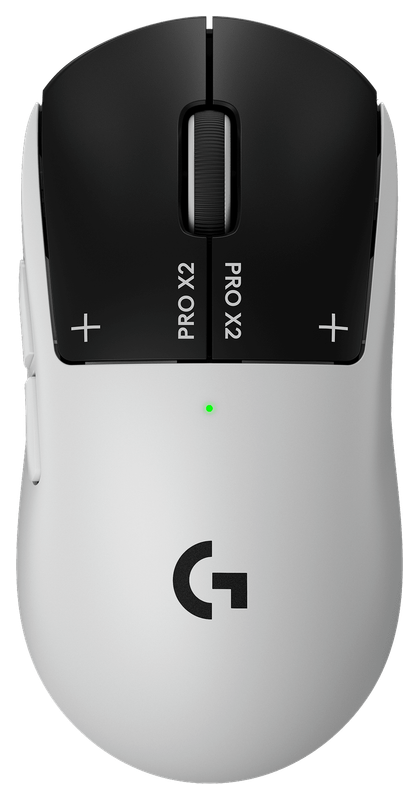
Rank 1.
Alienware
Dell Alienware 27" QD OLED
Verified Hours
10,375verified hours
Explore monitors ranked by verified, real Counter-Strike 2 playtime. Check refresh rates and inputs against the frame rate your PC delivers.
Compare 95 monitors for CS2, backed by 90,739 Verified Hours. Steam opens the top three; the rest of the ranking stays visible.
Steam verifies game time. Players declare their gear.
CS2 can put a quiet angle and a changing smoke cloud in the same round. Use Verified, Real Playtime to shortlist the monitors its players declare, then consider the information you need to follow as a round develops. Steam opens ranks 1–3; ranks 4–95 stay visible.
Top 3
Steam opens the full top three and their verified-hour totals. Any results ranked fourth or lower stay visible.
Alienware
Verified Hours
3,004verified hours
Verified Hours
2,702verified hours
Verified Hours
2,583verified hours
Verified Hours
2,478verified hours
Verified Hours
2,477verified hours
Verified Hours
2,400verified hours
Verified Hours
2,262verified hours
Verified Hours
2,135verified hours
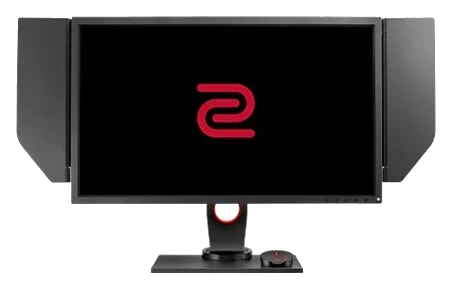
BenQ Zowie
Verified Hours
1,900verified hours
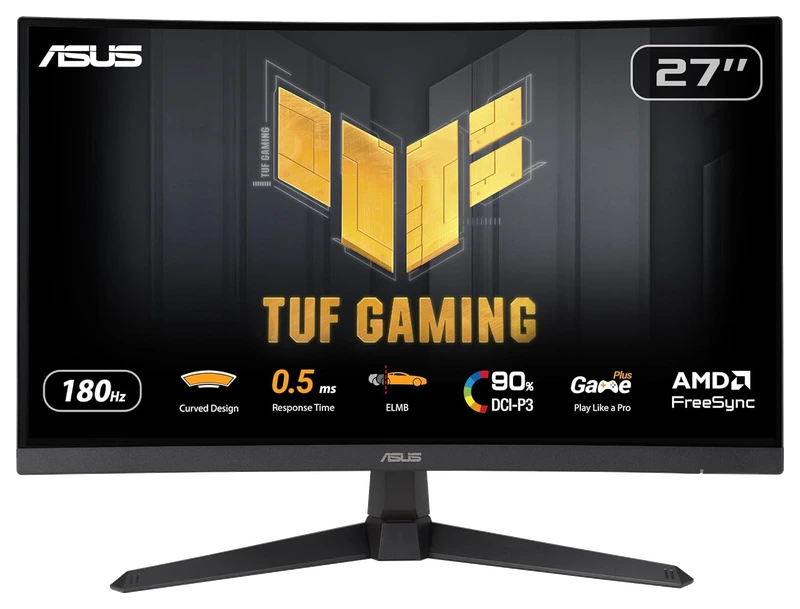
Verified Hours
1,785verified hours
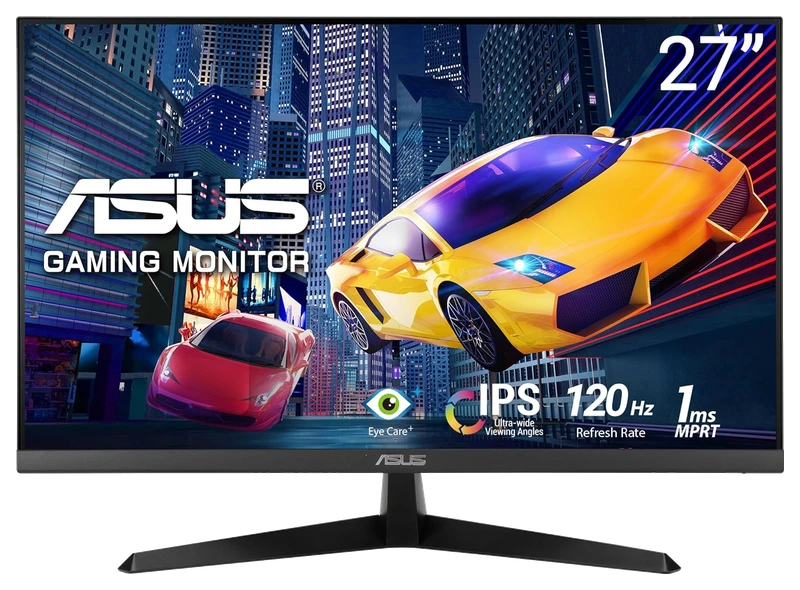
Verified Hours
1,678verified hours
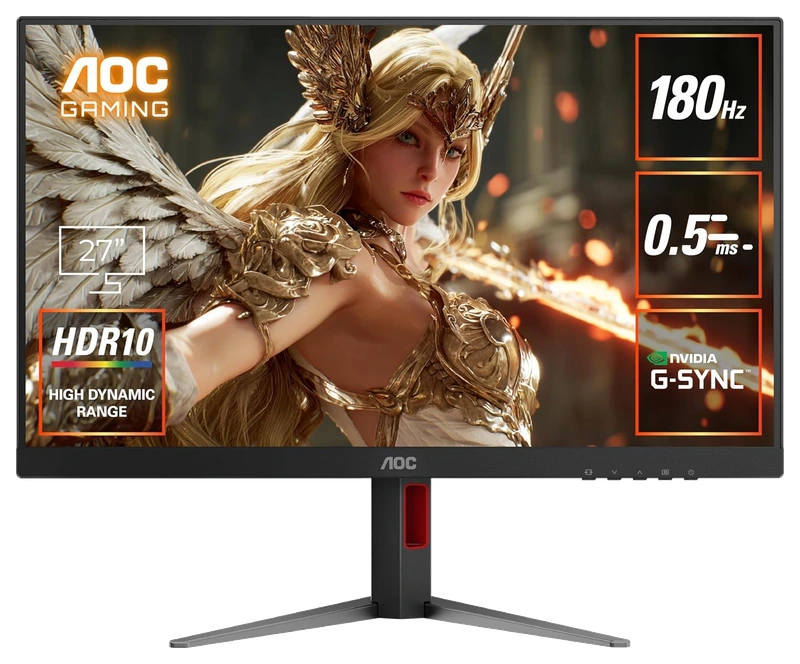
Verified Hours
1,677verified hours
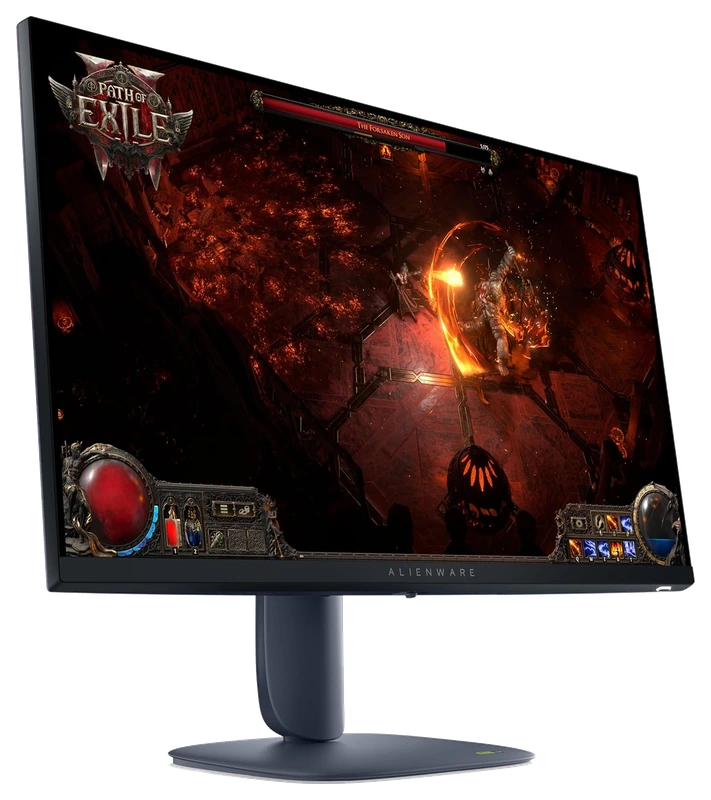
Alienware
Verified Hours
1,484verified hours
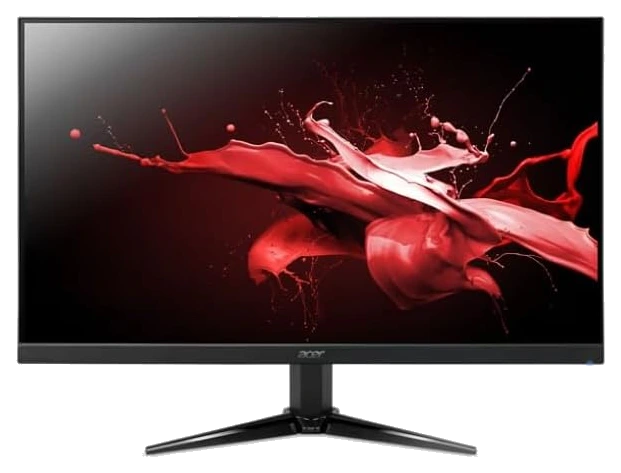
Amazon Renewed
Verified Hours
1,478verified hours
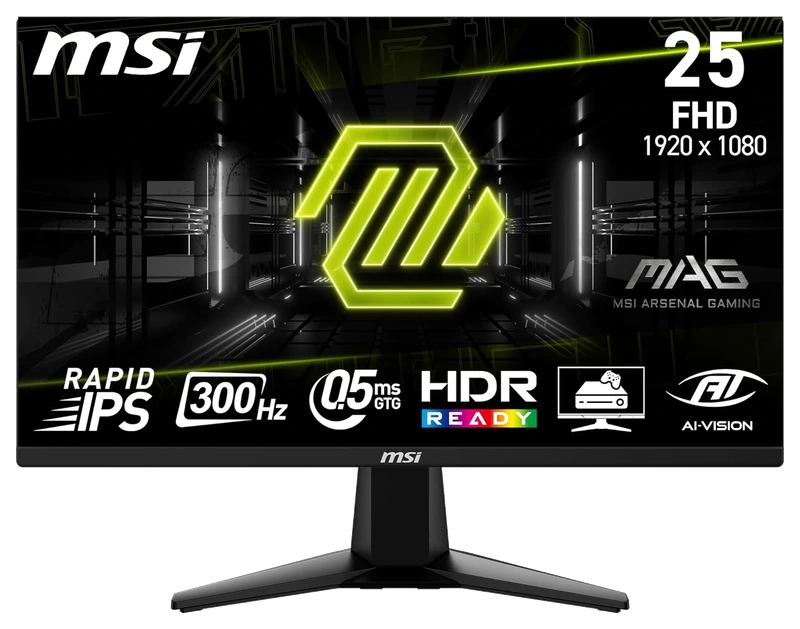
Verified Hours
1,477verified hours
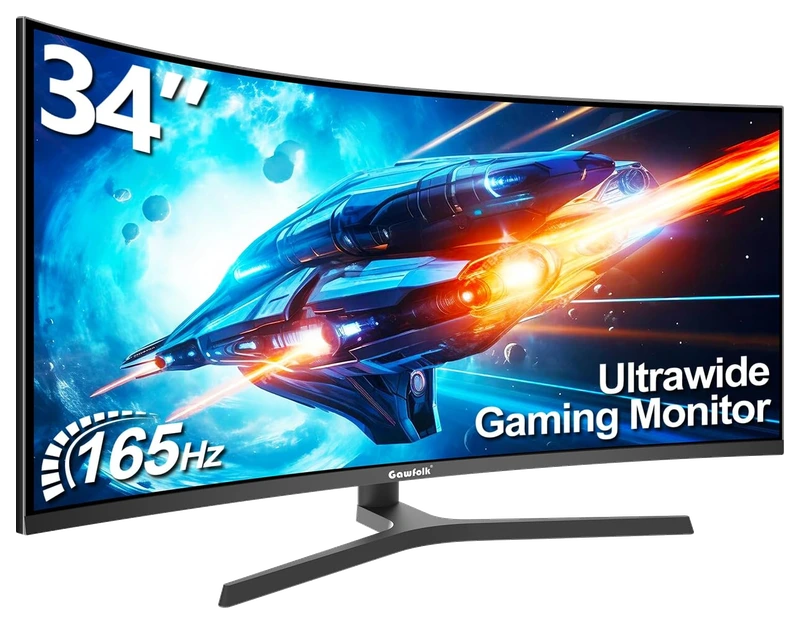
Verified Hours
1,370verified hours
Verified Hours
1,278verified hours
KTC
Verified Hours
1,277verified hours
UPERFECT
Verified Hours
1,202verified hours
Verified Hours
1,118verified hours
Verified Hours
1,117verified hours
Verified Hours
1,078verified hours
Z Z-Edge
Verified Hours
1,077verified hours
Verified Hours
1,038verified hours
Gawfolk
Verified Hours
1,037verified hours
Verified Hours
967verified hours
Verified Hours
958verified hours
Verified Hours
957verified hours
Z Z-Edge
Verified Hours
956verified hours
Verified Hours
955verified hours
ENGLAON
Verified Hours
805verified hours
Verified Hours
765verified hours
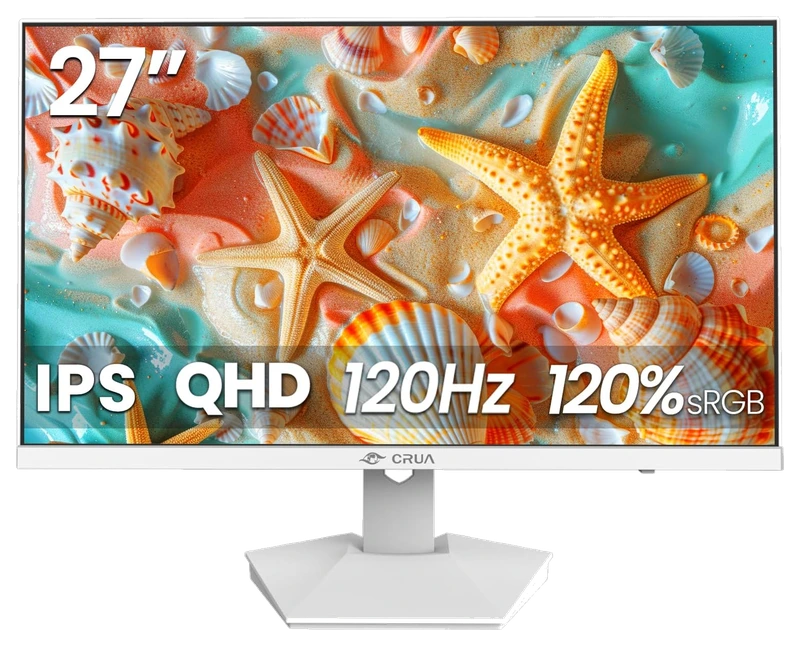
Verified Hours
645verified hours
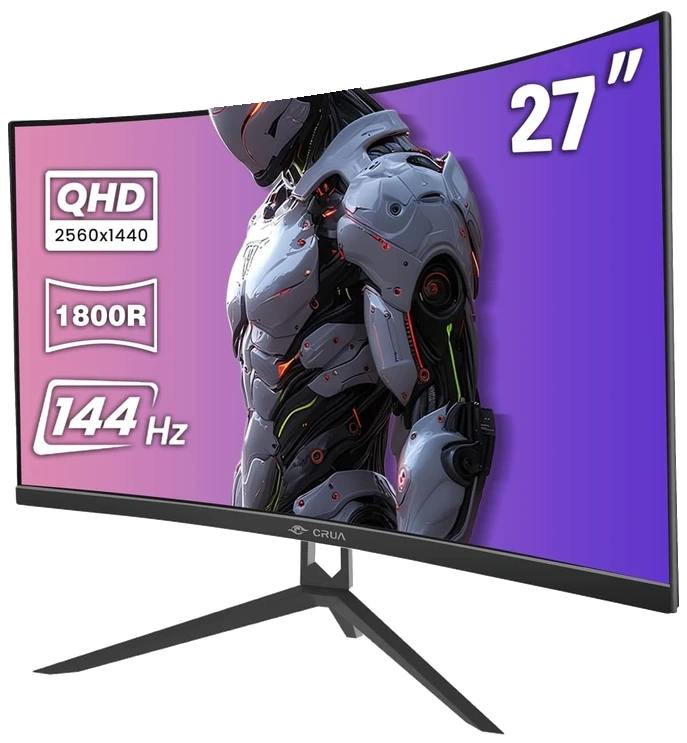
CRUA
Verified Hours
598verified hours
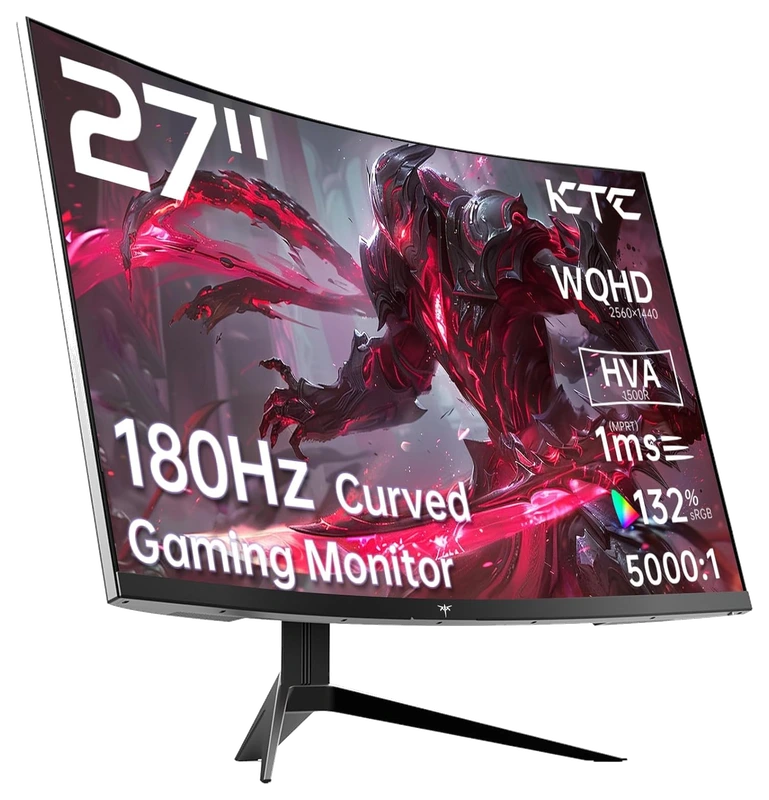
Verified Hours
597verified hours
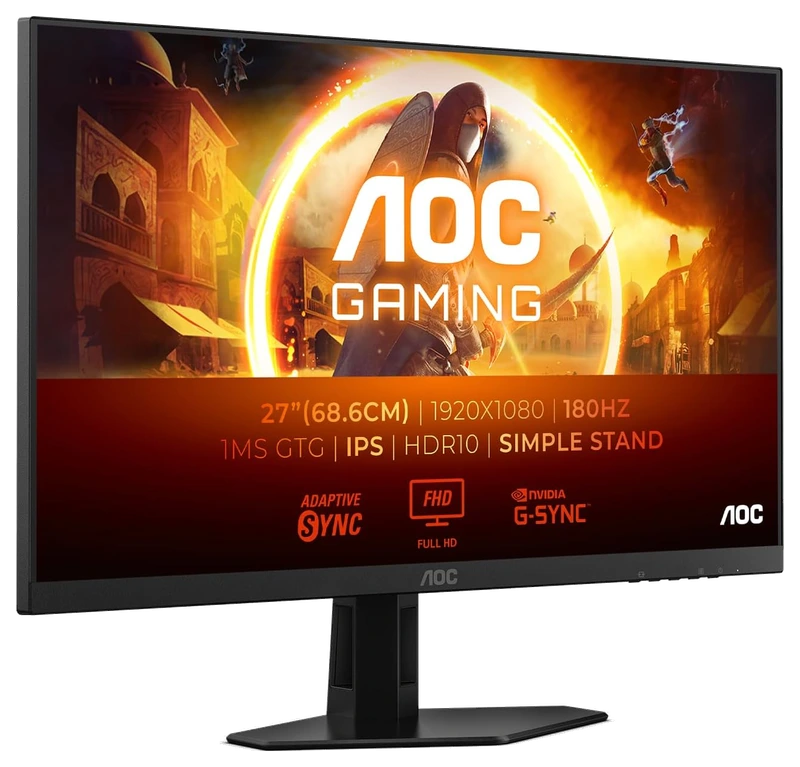
Verified Hours
558verified hours
Verified Hours
556verified hours
Verified Hours
555verified hours
Verified Hours
518verified hours
Verified Hours
517verified hours
Z Z-Edge
Verified Hours
516verified hours
Verified Hours
515verified hours
Verified Hours
514verified hours
Verified Hours
513verified hours
Verified Hours
512verified hours
Verified Hours
511verified hours
Verified Hours
478verified hours
Verified Hours
477verified hours
Verified Hours
476verified hours
Verified Hours
475verified hours
Verified Hours
474verified hours
Verified Hours
438verified hours
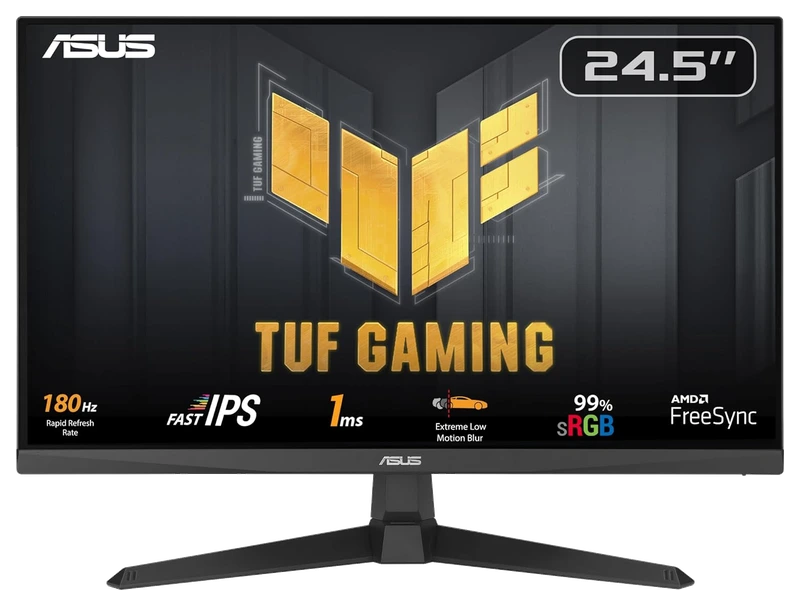
Verified Hours
437verified hours
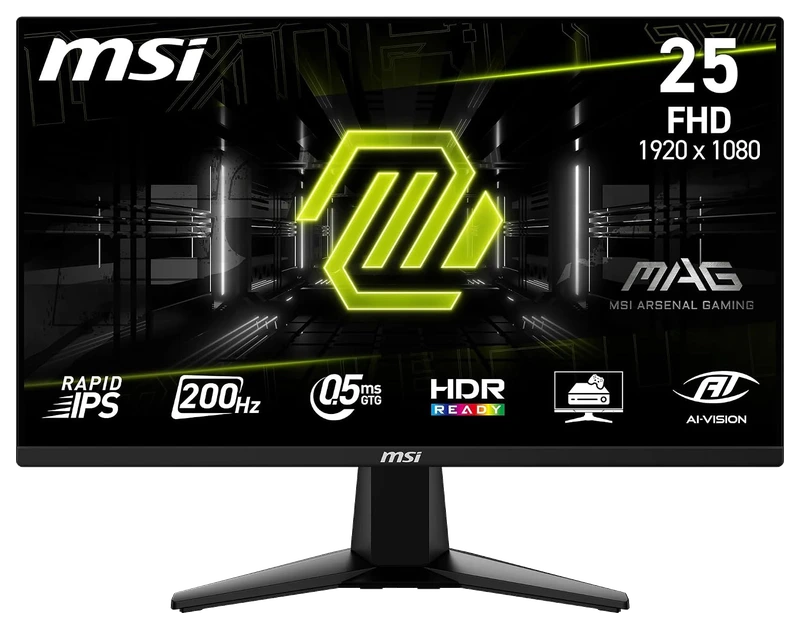
Verified Hours
437verified hours
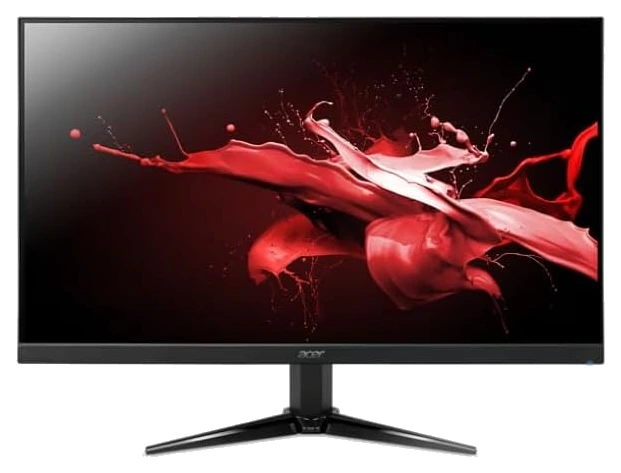
Amazon Renewed
Verified Hours
360verified hours
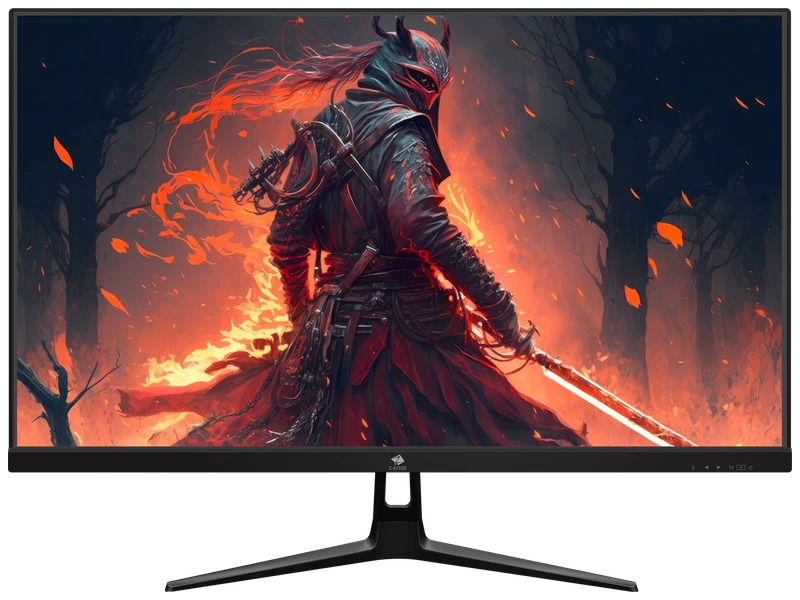
Z-EDGE
Verified Hours
358verified hours
Verified Hours
357verified hours
Verified Hours
356verified hours
Verified Hours
355verified hours
Gawfolk
Verified Hours
354verified hours
Verified Hours
318verified hours
Verified Hours
317verified hours
Verified Hours
278verified hours
Verified Hours
277verified hours
Verified Hours
276verified hours
Verified Hours
275verified hours
Verified Hours
274verified hours
Verified Hours
273verified hours
Verified Hours
238verified hours
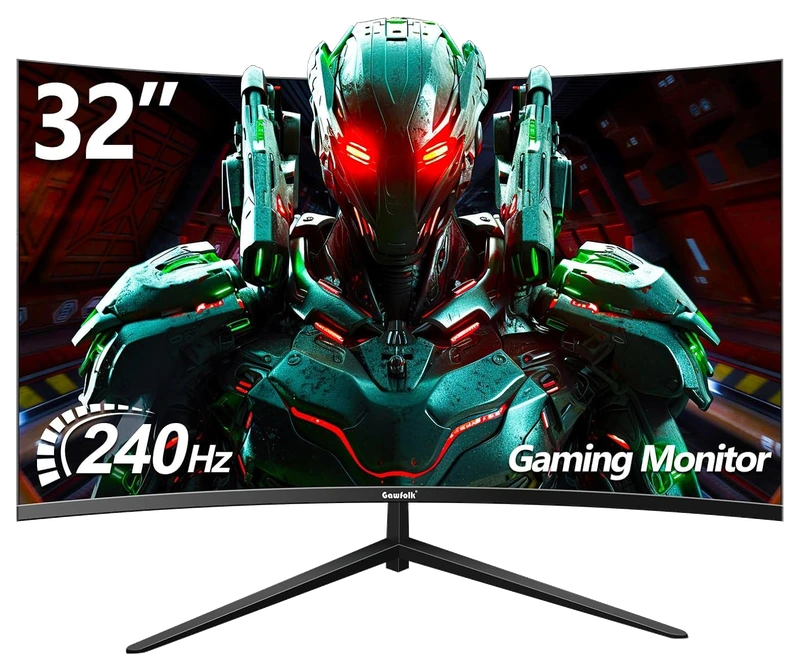
Gawfolk
Verified Hours
237verified hours
Verified Hours
236verified hours
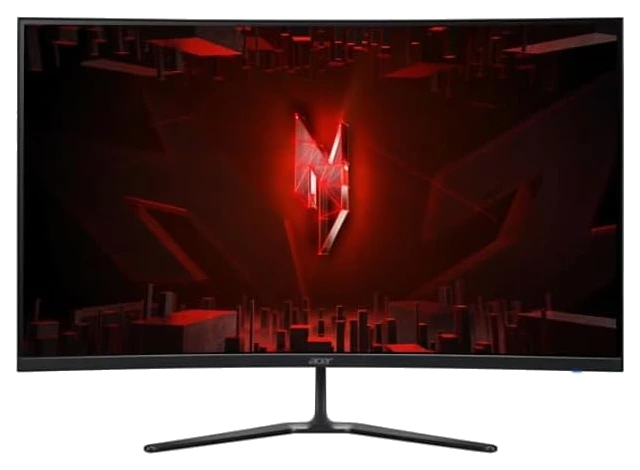
Amazon Renewed
Verified Hours
198verified hours
Verified Hours
197verified hours
Verified Hours
196verified hours
Verified Hours
195verified hours
Verified Hours
158verified hours
Verified Hours
157verified hours
CRUA
Verified Hours
156verified hours
Verified Hours
118verified hours
Verified Hours
117verified hours
Verified Hours
115verified hours
Verified Hours
114verified hours
Z Z-Edge
Verified Hours
113verified hours
Verified Hours
78verified hours
Verified Hours
77verified hours
Verified Hours
76verified hours
Verified Hours
75verified hours
Verified Hours
74verified hours
Verified Hours
73verified hours
Z-EDGE
Verified Hours
72verified hours
Verified Hours
38verified hours
Verified Hours
37verified hours
Loading public CS2 setups…
Compare monitors for Counter-Strike 2. Check refresh rates, inputs and your PC's frame rate.
Verified Hours determine the published order for Counter-Strike 2 monitors in this snapshot.
Ranking answer
Compare the published ranking above, then check fit and specifications. Sign in with Steam to reveal the leading products and their verified hours.
Reveal with SteamCompare resolution, refresh rate, panel behaviour and connections against your system and desk setup. The highest-ranked monitor is a starting point, not a guarantee of the best fit for you.
The Best CS2 Monitors board is backed by 90,739 verified hours in the cited snapshot.
Counter-Strike playtime scope. Steam's app 730 record includes CS:GO-era hours as well as Counter-Strike 2. The cumulative record does not isolate CS2-only playtime, individual match lengths or when those hours were played. See Steam's Counter-Strike 2 listing.
Their calculated refresh intervals are about 4.17ms, 2.78ms and 1.85ms respectively. These are display cycles, not measured response times or input lag. Match the refresh rate to the frame rate your PC sustains at your chosen resolution, then check supported HDMI or DisplayPort modes.
Compare the exact model at the refresh rates you use, including its overdrive setting (used to speed up pixel changes) and tested input. Check pixel response, overshoot (pixels going past the target colour) and input lag separately. A manufacturer's advertised response time does not describe every transition or the full button-to-screen delay.
Choose by measured motion clarity, viewing conditions and use outside gaming. OLED adds a static-image retention risk: MSI explains OLED burn-in and panel care. Check the exact panel's care instructions and regional burn-in warranty before deciding; a panel label alone does not establish the better display.
Compare native resolution, screen size, viewing distance and desk space. Check whether your GPU and selected input support the resolution and refresh rate together. Try the game's supported aspect-ratio and scaling options before buying for a particular stretched or ultrawide view.
Check the exact model. Strobing controls the backlight; variable refresh rate (VRR) follows changing frame delivery. ZOWIE documents that DyAc and VRR cannot operate together. Compare supported modes, brightness and motion clarity at the frame rate you actually sustain rather than applying that restriction to every monitor.
Check the exact model's current local price. Compare included accessories, delivery, return policy and warranty. Record the currency and check date for each offer. Start with this board's published order, then choose a model that meets your needs and budget. Rank does not show today's best value.
Start with the resolution and refresh rate your PC sustains in the CS2 situations you play. Then compare the exact monitor's supported inputs, motion behavior and size. The published ranking helps you build a shortlist; its hours do not measure display latency, motion clarity or your frame rate.
FPS describes frames produced by the game; Hz describes display refreshes. A faster display can refresh more often, but an advertised rate alone does not tell you the latency of the complete PC and monitor. These intervals are calculated as 1,000 ÷ Hz, not measured response times or CS2 benchmarks.
| Display refresh rate | Calculated refresh interval |
|---|---|
| 144 Hz | 6.94 ms |
| 240 Hz | 4.17 ms |
| 360 Hz | 2.78 ms |
| 480 Hz | 2.08 ms |
This is buying and setup guidance. HOURS.gg has not performed a controlled CS2 latency or motion-clarity test of every monitor in this ranking. The 2019 research below concerns controlled targeting tasks and does not certify any current CS2 model.
Buying for CS2
Find the features you need, then compare the verified hours behind the ranking. Named picks meet the stated specification requirement.
Buying question 01
Shortlist monitors listed at 240Hz or higher, then match resolution and inputs to the frame rate your PC sustains. Among qualifying models, verified hours determine the order.
Compare 240Hz monitorsBuying question 02
Look for response-time and overshoot measurements at the refresh rates you will use. Check which overdrive setting and input were tested before comparing two results.
Compare the ranked modelsBuying question 03
Compare current local price, refresh rate, resolution, connections and stand adjustment. Match those requirements to your PC and desk before paying for additional features.
Compare the ranked modelsCheck specifications, fit and price after the published ranking narrows the field.
The useful connection is game experience and a player’s declared main. Keep the game, board and snapshot together when reading the ranking.
01 / Game
The CS2 hours connect game experience with the monitor a player declares as their main. That gives you CS2 players' screen choices to investigate, with the game's mix of holding an angle, repositioning and reacting to smoke in mind.
02 / Backing
Compare the verified hours backing each player-declared monitor. Open the full list to see more products, with the published hours and original ranks intact.
03 / Your main
Connect Steam through Hours.gg, then choose the monitor you declare as your CS2 main. Your saved gear and the published ranking update separately.
Before buying, confirm the size, resolution and supported inputs of the exact model. Read the fit guidance
Revisit a familiar angle, then watch how the scene changes when smoke arrives and players move around it. Compare those situations using the CS2 settings you normally play with. The board's hours help identify player-backed monitor choices; this game-specific check helps you decide which shortlisted screen suits what you need to see. Valve's Counter-Strike 2 overview
Hours’ established model connects verified game experience with players’ declared main gear. The ranking gives you that game-specific starting point when choosing a monitor. Manufacturer specifications help you check the resulting shortlist.
Players report their gear to Hours. Steam supplies game-playtime information. Keep those two sources distinct: a declared main is the player’s choice, and game time is the experience backing it.
Verified Hours are the verified player game time backing a player-declared main under Hours’ established methodology. This board keeps the published hours for each monitor in the CS2 snapshot. The numbers are game experience, not a laboratory score.
The ranking reflects the verified hours backing each player-declared monitor in Hours’ existing board. It does not measure hardware performance or confirm fit and compatibility with your setup. Use the ranking to start your decision, then check the exact model’s size, resolution and supported inputs.
Steam records game time, which Hours connects with a player’s declared main under the established methodology. It does not record physical device-use duration.
Connect your account to verify available game playtime and open the top three when your account is signed in and Steam-verified. You can then choose the monitor you declare as your CS2 main.
Under the existing Hours model, your declared main carries your game’s hours in the published game scope. It records your choice; it does not establish when you bought the monitor or when you used it. See the established methodology for how those hours count.
Opening the full list displays more products. A product at rank 8 remains rank 8, with the same verified hours. The Steam rule follows original ranks 1–3, so opening the list cannot unlock them.
Check the exact model’s size, resolution and supported inputs before buying. The fit guidance is available above. Those details support the playtime-led choice; they do not change this board’s order.
This board displays its published snapshot dated . Steam’s app 730 cumulative record includes the CS:GO era; it cannot isolate CS2-only time or individual matches. Your account’s latest synced playtime and the published ranking update separately.
Game boards rank the most-used gear among Hours.gg's verified players in the named game, category and snapshot, measured in verified player hours. Each player's declared main carries their verified hours in the published game scope; these hours do not measure time spent using a specific device.
Bring your game experience
Connect Steam to reveal the top three and player setups. Then add your own gear.
Public playtime only - no inventory access
Public CS2 setups, ordered by total verified hours across supported games.

@brad

@rezzz

Top 3 setups
Reveal their gear and find gamers with similar game hours or shared gear.
Players declare their gear; Steam verifies game time. Only saved gear is revealed.